Key takeaways
- Discover the best drawing tablets for animation, from compact pen displays to full-size screens. Compare pen accuracy, pressure levels and software support.
Animation starts with drawing, and drawing on a screen feels very different from drawing on paper. A pen display lets an animator sketch directly where the line appears, which makes timing, spacing, and character poses easier to judge frame by frame. The wrong tablet adds lag, wobble, or a cramped drawing area that slows every scene. The right one disappears into the work, so attention stays on movement rather than hardware. Short loops, walk cycles, and lip sync all reward a pen that tracks the hand without delay, since timing lives in small movements.
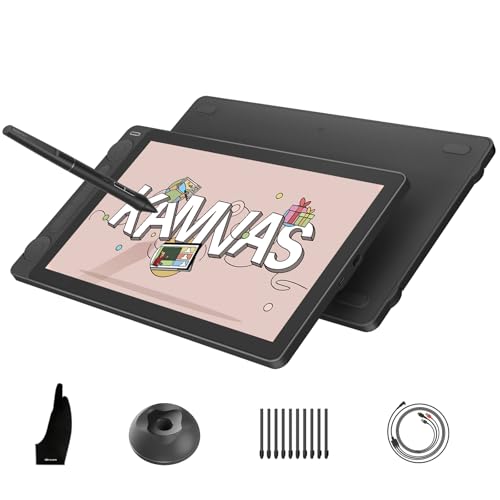

This guide is for 2D animators, storyboard artists, students learning frame-by-frame drawing, and illustrators adding motion to their work. The three pen displays below were chosen from the names and specifications on their Amazon listings, comparing screen size, pen pressure, tilt response, and software compatibility before any recommendation was made. Each tablet below suits a different stage of the craft, from first sketches to finished scenes.
Quick Picks
As an Amazon Associate we earn from qualifying purchases
| Product | Best for | Key spec from title |
|---|---|---|
| XP-Pen Artist 12 (2nd Gen) | Compact animation, storyboarding, and rough keys | 11.9-inch display, battery-free stylus, red dial |
| Huion Kamvas 13 (Gen 3) | Smooth line work, shading, and pressure control | 13.3-inch display, 16384 pressure levels, etched glass |
| Wacom One 12 | Reliable beginner animation setup for students | 11.6-inch display, laminated screen, battery-free pen |
How to Choose
Screen Size and Drawing Space
A pen display should give the whole arm room to move, not just the wrist. An 11 to 13 inch screen suits storyboarding, rough keys, and short scenes, and it travels well between a desk and a couch. Larger screens help with detailed cleanup work and long sequences, where small strokes carry the character’s expression. Before choosing, measure the desk space beside the keyboard, since a pen display plus a laptop can crowd a small table quickly. A bigger screen also shows the timeline and tool panels beside the canvas, so the animator flips between drawing and playback less often. Weight counts for travel, since a heavy display fills a bag fast.
Pen Pressure and Tilt Response
Pressure levels decide how naturally a line thickens and thins as the hand presses harder. A pen with thousands of levels responds to light sketching strokes and firm inking strokes alike, which matters when one tool handles both roughs and cleanups. Tilt support lets the pen shade like a real pencil held at an angle, a useful trick for textured fills and soft shadows. Battery-free pens remove charging from the routine entirely, so the stylus is always ready when an idea arrives. A textured surface changes the feel as well, since a slick screen lets the pen skid while a matte finish grips it gently. Test the pen at the lightest touch first.
Software Compatibility
Every pen display in this guide works with the major animation and drawing programs on Windows, Mac, and often Chromebook or Android. Still, confirm the exact program before buying, since some classroom licenses and mobile apps restrict which tablets they recognize. Driver support matters too: a tablet with a maintained driver keeps working after operating system updates, while an abandoned driver can break a workflow overnight. Check that the maker’s driver page lists a current version for your system. Classroom setups deserve an extra check, since shared computers may block driver installs without admin rights. A tablet that works on a phone or a Chromebook also opens sketching away from the main desk.
Desk Setup and Cable Layout
Pen displays connect with one or two cables, and the layout decides how tidy the desk stays. A single USB-C cable is the cleanest option when the computer supports video over USB-C, while older setups may need a three-in-one cable with separate power. A built-in stand or an adjustable arm sets the drawing angle, which protects the wrist during long sessions. Keep the cable slack generous, since a taut cable tugs the tablet while drawing. A powered hub helps when the laptop offers only one free port, since the tablet, keyboard, and headset compete for the same socket. Angle the screen near 20 degrees for sketching, then flatten it for inking.
The 3 Best Options
XP-Pen Artist 12 (2nd Gen)
The XP-Pen Artist 12 (2nd Gen) is a compact pen display that fits animators who sketch on the move or work at a crowded desk. Its 11.9-inch fully laminated screen keeps the pen tip close to the line, so strokes land where the hand expects them. The X3 stylus needs no battery and no charging, and a red dial plus eight shortcut keys put undo, zoom, and brush size under one thumb. The display covers a wide color range, which helps when rough animation moves into colored frames. The dial turns smoothly under the thumb, and the keys sit close enough to reach without looking away.
Specs
- 11.9-inch Full HD display, 1920 x 1080 resolution
- Color coverage: 127% sRGB
- X3 Smart Chip stylus, battery-free design
- 8192 pressure levels with 60-degree tilt support
- 8 shortcut keys and a red dial
- USB-C connection, works with Windows, Mac, Android, and ChromeOS
Best for: Animators who want a portable pen display for sketching, storyboarding, and rough keys away from the main desk on short trips.
Watch out for: The compact screen feels tight for detailed cleanup on long scenes, so zoom in often while refining lines and expressions.
ASIN: B09MFRF28H
Huion Kamvas 13 (Gen 3)
The Huion Kamvas 13 (Gen 3) gives animators a larger canvas and a pen that tracks subtle pressure changes across the whole stroke. Its 13.3-inch etched display cuts glare and gives the surface a paper-like drag, which steadies long lines and slow curves. The PenTech 4.0 stylus reads thousands of pressure steps, so a single stroke can move from a faint construction line to a bold final outline. Five press keys sit within thumb reach, and a single USB-C cable keeps the connection simple on a modern laptop. The etched surface also resists fingerprints, so the screen stays clear through long sessions without constant wiping.
Specs
- 13.3-inch Full HD display, 1920 x 1080 resolution
- PenTech 4.0 battery-free stylus
- 16384 pressure levels with 60-degree tilt support
- Etched anti-glare glass with paper-like texture
- 5 programmable press keys
- USB-C single-cable connection
Best for: Frame-by-frame animation where line quality, shading control, and smooth pressure response matter most of all in every scene you draw.
Watch out for: The pen display needs a computer nearby at all times, since it has no standalone mode for working alone on the road.
ASIN: B0F13T9H31
Wacom One 12
The Wacom One 12 is the steady choice for beginners and students starting animation, backed by the brand that defined pen displays. Its 11.6-inch laminated Full HD screen shows lines with almost no gap between pen and pixel, and the battery-free pen responds to light sketching and firm inking alike. Setup is simple across Windows, Mac, Chromebook, and Android, and the included pen feels balanced during long practice sessions. For a first animation tablet, its reliability and broad software support matter more than extra features. The pen feels light in the hand, and the laminated screen shows no gap between the tip and the line.
Specs
- 11.6-inch Full HD laminated display, 1920 x 1080 resolution
- Color coverage: 99% sRGB
- Battery-free EMR pen with 4096 pressure levels
- Natural tilt recognition
- USB-C connectivity
- Works with Windows, Mac, Chromebook, and Android
Best for: Students and beginners building their first animation setup with a reliable pen and broad software support in class and at home.
Watch out for: It has no shortcut keys on the tablet, so keyboard shortcuts carry that load through every drawing session all day.
ASIN: B0B4VRB719
Which One Fits Your Situation
Frame-by-Frame 2D Animation
For hand-drawn sequences, the Huion Kamvas 13 (Gen 3) leads. Its large pressure range captures the difference between a light construction stroke and a confident final line, and the etched screen keeps the pen from sliding during slow curves. The XP-Pen Artist 12 (2nd Gen) is the portable alternative for rough keys, while the Wacom One 12 suits animators who value a proven driver over extra pressure steps. All three handle rough keys well.
Storyboarding on the Go
Storyboard artists work fast and travel light, so the XP-Pen Artist 12 (2nd Gen) fits best. Its compact screen and red dial speed up panel sketching, and the whole kit packs into a laptop bag. The Wacom One 12 is nearly as portable and adds broader software support for classroom settings. Either one handles quick thumbnails and shot planning without a large desk setup. Pack a short cable and a slim case.
A First Tablet for Students
Students should start with the Wacom One 12. Its driver support is the most established, its pen needs no charging, and its laminated screen teaches good habits by showing lines exactly where the pen touches. The XP-Pen Artist 12 (2nd Gen) is the alternative when shortcut keys matter, since its dial and buttons reduce trips to the keyboard during timed exercises. A compact screen also fits crowded classroom desks.
A Second Screen for a Studio Desk
In a studio, a pen display often sits beside a main monitor as a dedicated drawing surface. The Huion Kamvas 13 (Gen 3) fills that role with its larger screen and textured surface, while the XP-Pen Artist 12 (2nd Gen) works when desk space is tight. Keep the pen display at a comfortable drawing angle with a stand, and reserve the main monitor for the timeline and reference images.
Common Mistakes
- Buying a pen display before checking that the animation software recognizes its driver and supports its pressure features on your system on the first install.
- Choosing the smallest screen to save space, then struggling with cramped strokes and tiny buttons on detailed scenes for hours each day.
- Assuming every USB-C port carries video, then finding the tablet stays dark because the laptop needs an adapter for display output on that port.
- Skipping the stand and drawing flat, which strains the wrist and shoulder during long sessions at the desk day after day without relief.
- Ignoring pen pressure specs and ending up with lines that cannot shift from faint to bold across a scene no matter how hard you press.
Frequently Asked Questions
Do I need a pen display, or is a screenless tablet enough for animation?
A pen display puts the drawing under the pen, which helps most animators judge poses and timing faster. A screenless tablet costs less and works once the hand learns to draw while the eyes watch the monitor. Newcomers pick up basics faster on a display, while seasoned animators stay productive with either type.
How many pressure levels does an animation tablet need?
Four thousand levels already capture the full range of sketching and inking pressure for most animators. Higher counts add finer steps between light and firm strokes, which helps shading and calligraphy-style lines. The pen tip, the screen texture, and the brush settings in the software matter at least as much as the raw pressure number.
Can these tablets run animation software on their own?
No, all three are pen displays that need a computer to run the software. The tablet supplies the screen and pen input, while the laptop or desktop handles the program, file storage, and playback. Tablets with a built-in computer exist in other product lines, yet none of the models here work standalone. A laptop stays in the setup.
What size pen display is best for animation beginners?
An 11 to 13 inch display is a good starting point. It is large enough for full-arm strokes and small enough to fit beside a keyboard on a normal desk. Larger displays help with detailed cleanup work, yet they cost more and demand more desk space. Start compact, then upgrade once the workflow outgrows the screen.
FAQ
Do I need a pen display, or is a screenless tablet enough for animation?
How many pressure levels does an animation tablet need?
Can these tablets run animation software on their own?
What size pen display is best for animation beginners?
More from Amazon
Programs that pair well with the guide above. Offers and eligibility are set by Amazon and may change.
Free shipping on eligible items, Prime Video and more. Eligible new members can start with a free trial.
Start a Prime free trialA Prime membership for ages 18-24 with a trial period. Eligibility is set by Amazon.
See Prime for Young AdultsAudiobooks and podcasts to listen to on the go. Eligible new members can start with a free trial.
Try Audible freeAd-free music streaming. Eligible new subscribers can start with a free trial.
Try Music Unlimited freeAs an Amazon Associate we earn from qualifying purchases.