Our Short List of 3

- Best for: Designers who want a large 4K canvas and a picture mode tuned for technical linework.
- 31.5-inch IPS panel with 3840 x 2160 resolution
- 99 percent sRGB and 99 percent Rec.709 coverage
- Factory calibrated, Delta E of 3 or less, calibration report included
- HDR10 support
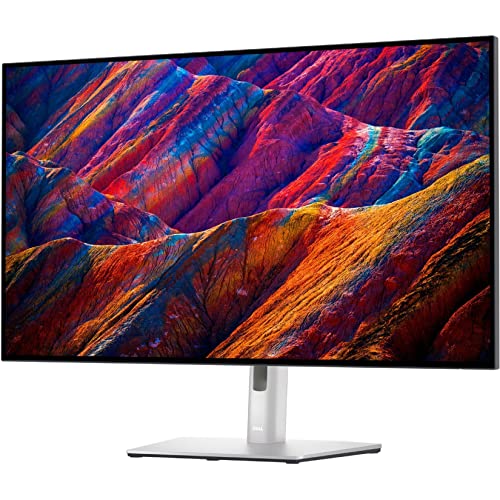
- Best for: Laptop-based engineers who want one cable for video, charging, networking and peripherals.
- 31.5-inch IPS Black panel with 3840 x 2160 resolution
- 60 Hz refresh rate, 5 ms gray-to-gray response
- 400 nits brightness, 2000:1 contrast ratio
- 100 percent sRGB, 100 percent Rec.709, 98 percent DCI-P3

- Best for: Drafters on 27-inch desks who want BenQ’s CAD/CAM mode and puck controller.
- 27-inch IPS panel with 3840 x 2160 resolution
- 60 Hz refresh rate, 5 ms response time
- 250 nits brightness
- 99 percent sRGB and 99 percent Rec.709 coverage
All 5 Picks at a Glance
| Product | Specs | Action |
|---|---|---|
| BenQ PD3205U 32-Inch 4K Designer Monitor |
| Check price on Amazon |
| Dell UltraSharp 32 4K USB-C Hub Monitor U3223QE |
| Check price on Amazon |
| BenQ PD2705U 27-Inch 4K Designer Monitor |
| Check price on Amazon |
 Dell UltraSharp 27 4K USB-C Hub Monitor U2723QE |
| Check price on Amazon |
 ASUS ProArt Display PA279CRV 27-Inch 4K Monitor |
| Check price on Amazon |
Key takeaways
- Five 4K monitors picked for CAD work, with CAD/CAM modes, factory calibration, dense pixels and USB-C docks that keep drawings sharp all day.
The real decision when buying a monitor for CAD is whether fine geometry stays readable at the zoom levels drafting actually uses. Hairline walls, hatch patterns, dimension strings and overlapping layers all have to remain distinct for hours at a time, and a panel that smears thin lines or shifts color between sessions quietly adds checking work to every drawing. Refresh rate and gaming features barely matter here; pixel density, calibration and a stand that holds a comfortable angle matter far more.
This roundup is for mechanical designers, architects, civil drafters, electrical engineers and students who spend most of the day inside AutoCAD, SolidWorks, Revit or Fusion 360. Every pick below was chosen from the names and specifications on its Amazon listing: 4K resolution, factory calibration figures, CAD-specific picture modes where the listing offers them, and USB-C docking for laptop-based desks.
Quick Picks
As an Amazon Associate we earn from qualifying purchases
| Product | Best for | Key spec from title |
|---|---|---|
| BenQ PD3205U | Large-screen drafting with a dedicated CAD/CAM mode | 31.5-inch 4K IPS, factory calibrated |
| Dell UltraSharp U3223QE | One-cable laptop desks that need Ethernet and a hub | 31.5-inch IPS Black, USB-C 90W |
| BenQ PD2705U | 27-inch desks that still want the CAD/CAM mode | 27-inch 4K IPS, Hotkey Puck G2 |
| Dell UltraSharp U2723QE | Maximum line sharpness on a smaller panel | 27-inch IPS Black, 2000:1 contrast |
| ASUS ProArt PA279CRV | Drawings that also feed color-checked renders | 99 percent DCI-P3 and Adobe RGB |
How to Choose
Resolution and Pixel Density Come First
CAD software fills the screen with thin vector lines, small text and dense toolbars, so the jump from 1440p to 3840 x 2160 is not a luxury; it is the difference between zooming constantly and reading a whole sheet at once. At 27 inches, 4K works out to roughly 163 pixels per inch, which keeps diagonal lines smooth instead of stair-stepped. At 31.5 inches the same pixel count spreads wider, so individual elements grow larger while staying sharp. Either way, avoid 1080p panels above 24 inches for drafting, because linework visibly softens and dimension text loses its crisp edges during long sessions.
Calibration Figures Beat Marketing Color Claims
Layer colors, part materials and plotted output only stay consistent when the panel holds its calibration, so look for a stated Delta E figure and a factory calibration report in the box rather than vague wide-gamut claims. A Delta E of 3 or less is a sensible floor for technical work, and 2 or less suits offices that also produce client-facing renders. Coverage of the full sRGB space matters most for CAD, since drawings, PDFs and shared models all live in sRGB; wider DCI-P3 or Adobe RGB coverage is a bonus for visualization work, not a requirement for drafting accuracy.
Pick the Size Around Your Desk and Software Layout
A 31.5-inch screen lets you keep a drawing open beside a properties panel, a parts library and a spreadsheet without stacking windows, which suits assembly work and architectural sheets. A 27-inch screen fits shallower desks and dual-monitor arms, and its tighter pixel pitch makes small annotation text easier to read without scaling. Whichever size you choose, an ergonomic stand with height, tilt and pivot adjustment is worth more than a fixed base, because rotating a panel to portrait orientation is genuinely useful for reviewing tall drawings, specifications and code-like parameter lists.
USB-C Docking and KVM Switching Clean Up the Desk
If a laptop is your workstation, a monitor with USB-C power delivery turns one cable into video, charging and peripherals, and 90W covers most mobile workstations under drafting loads. A built-in KVM switch matters when a desktop tower and a laptop share the same screen, since it swaps keyboard and mouse with the input instead of a second set of cables. Ethernet through the monitor, listed as RJ45 on the Dell models here, keeps a laptop on wired networking without a separate dongle. Check the port list on the listing carefully, because cheaper lookalike models often drop the hub entirely.
The 5 Best Options
BenQ PD3205U 32-Inch 4K Designer Monitor
- Best for: Designers who want a large 4K canvas and a picture mode tuned for technical linework.
- 31.5-inch IPS panel with 3840 x 2160 resolution
- 99 percent sRGB and 99 percent Rec.709 coverage
- Factory calibrated, Delta E of 3 or less, calibration report included
- HDR10 support
Designers who want a large 4K canvas and a picture mode tuned for technical linework.
It is a 60 Hz class panel aimed at accuracy, not motion, and the wide stand needs a reasonably deep desk.
BenQ builds this 31.5-inch designer panel around the workflow CAD users actually have, including a dedicated CAD/CAM mode on the listing that raises line contrast for technical drawings. The factory calibration ships with its own report and a Delta E of 3 or less, and the Hotkey Puck G2 switches picture modes from the desk instead of through nested menus. USB-C carries 90W of power delivery, so a workstation laptop docks with one cable, and the KVM switch lets a second machine share the screen. For drafters who want the big canvas first and color paperwork second, this is the most CAD-aware pick here.
Dell UltraSharp 32 4K USB-C Hub Monitor U3223QE
- Best for: Laptop-based engineers who want one cable for video, charging, networking and peripherals.
- 31.5-inch IPS Black panel with 3840 x 2160 resolution
- 60 Hz refresh rate, 5 ms gray-to-gray response
- 400 nits brightness, 2000:1 contrast ratio
- 100 percent sRGB, 100 percent Rec.709, 98 percent DCI-P3
Laptop-based engineers who want one cable for video, charging, networking and peripherals.
No dedicated CAD/CAM mode, so line contrast depends on your software settings rather than a preset.
The U3223QE pairs an IPS Black panel with the strongest docking setup in this group, which makes it the natural anchor for a laptop-first CAD desk. Its 2000:1 contrast ratio is double the usual IPS figure, so dark model space backgrounds and fine gray construction lines separate more clearly during long drafting sessions. Color coverage runs to 100 percent sRGB and 98 percent DCI-P3 with a Delta E under 2, and the port selection adds RJ45 Ethernet plus DisplayPort out for daisy-chaining a second screen. There is no CAD-specific picture mode, but the raw panel quality and hub carry it.
BenQ PD2705U 27-Inch 4K Designer Monitor
- Best for: Drafters on 27-inch desks who want BenQ’s CAD/CAM mode and puck controller.
- 27-inch IPS panel with 3840 x 2160 resolution
- 60 Hz refresh rate, 5 ms response time
- 250 nits brightness
- 99 percent sRGB and 99 percent Rec.709 coverage
Drafters on 27-inch desks who want BenQ’s CAD/CAM mode and puck controller.
The 65W USB-C output can fall short for larger mobile workstations under heavy rendering loads.
This is the 27-inch version of BenQ’s designer formula, and it keeps the feature CAD users care about most: the CAD/CAM mode that lifts thin-line visibility, backed by factory calibration with a Delta E of 3 or less. The tighter pixel pitch at this size makes annotation text and small symbols especially crisp, and the Hotkey Puck G2 again handles mode switching from the desktop. USB-C power delivery drops to 65W compared with its larger sibling, which still suits most thin workstation laptops, and the built-in speakers cover call audio without extra desk gear. It suits smaller desks that refuse to compromise on drafting clarity.
Dell UltraSharp 27 4K USB-C Hub Monitor U2723QE
- Best for: Precision-focused users who want maximum pixel density plus full docking on a compact desk.
- 27-inch IPS Black panel with 3840 x 2160 resolution
- 60 Hz refresh rate, 5 ms gray-to-gray response
- 400 nits brightness, 2000:1 contrast ratio
- 100 percent sRGB, 100 percent Rec.709, 98 percent DCI-P3
Precision-focused users who want maximum pixel density plus full docking on a compact desk.
At this density, most users will run interface scaling in Windows, so check your CAD package handles scaling cleanly.
Dell’s smaller UltraSharp keeps the same IPS Black panel technology as the 32-inch model, compressing all 3840 x 2160 pixels into 27 inches for the sharpest text rendering in this roundup. Contrast stays at 2000:1, brightness at 400 nits, and color coverage matches its sibling at 100 percent sRGB and 98 percent DCI-P3 with a Delta E under 2, so drawings look identical if you pair the two sizes. The hub repeats the formula as well: 90W USB-C, Ethernet, DisplayPort out and a KVM switch. Choose it when desk width is limited but a second matching screen may arrive later.
ASUS ProArt Display PA279CRV 27-Inch 4K Monitor
- Best for: Engineers and architects whose CAD output also becomes color-checked client material.
- 27-inch IPS panel with 3840 x 2160 resolution
- 99 percent DCI-P3 and 99 percent Adobe RGB coverage
- Delta E under 2, Calman Verified
- VESA DisplayHDR 400
Engineers and architects whose CAD output also becomes color-checked client material.
There is no CAD/CAM picture preset, and the wide Adobe RGB gamut needs correct software color settings to avoid oversaturated previews.
The ProArt PA279CRV targets the overlap between technical drawing and presentation work, covering 99 percent of both DCI-P3 and Adobe RGB with a Delta E under 2 and Calman Verified status on the listing. That wider gamut is more than drafting strictly needs, yet it pays off when the same screen produces client renders, printed boards or marketing views of a model. USB-C delivers 96W, the strongest charging figure here, and DisplayPort supports daisy-chaining a second monitor. Its ergonomic stand adjusts in every direction, including pivot, which helps when reviewing long specification sheets beside a drawing.
Which One Fits Your Situation
You Draft All Day and Rarely Touch Renders
Take the BenQ PD3205U. The dedicated CAD/CAM mode is built for exactly your workload, raising the contrast of fine lines against the model space background, and the 31.5-inch canvas holds a full sheet beside your tool panels. The included calibration report and Hotkey Puck keep the picture consistent without menu diving, so the screen simply stays out of the way of the drawing.
Your Laptop Is the Whole Workstation
Either Dell UltraSharp fits, and the choice is desk size. Both give you 90W USB-C charging, wired Ethernet through the monitor and a KVM switch in a single cable routine, so arriving at the desk means plugging in once. Pick the U3223QE for the bigger canvas, or the U2723QE when the desk is narrow and you prefer tighter pixel density for small text.
You Run Two Machines on One Desk
The BenQ models earn their place here through the KVM switch and the Hotkey Puck G2, which together move keyboard, mouse and picture mode between a tower and a laptop in seconds. The PD3205U adds 90W charging for the laptop side. If your second machine is a Mac, the PD2705U’s Mac-ready tuning and 27-inch footprint make the swap tidier.
Your Drawings Become Client Presentations
Choose the ASUS ProArt PA279CRV. Its Adobe RGB and DCI-P3 coverage with Calman Verified accuracy means the render you approve on screen stays close to the printed board and the PDF your client opens. The 96W USB-C port also keeps a creative workstation laptop charged through long review sessions, and the pivot stand helps when the meeting turns to specification documents.
Common Mistakes
- Buying a 1080p monitor at 27 inches or larger, then fighting soft linework and fuzzy dimension text all day.
- Chasing high refresh rates and gaming response figures that drafting software never uses, while ignoring calibration data.
- Skipping the Delta E figure and calibration report, then discovering two office screens show the same layer colors differently.
- Forgetting to check USB-C wattage, so the monitor cannot charge the workstation laptop it was bought to dock.
- Placing a 31.5-inch panel on a shallow desk at reading distance meant for a laptop screen, causing neck strain.
Frequently Asked Questions
Is 4K Resolution Worth It for 2D Drafting?
Yes, for most drafters it is the single most useful upgrade. Thin lines, hatch patterns and small dimension text stay legible without constant zooming, and a full sheet remains readable with tool panels open. The trade-off is interface scaling: at 27 inches most users enlarge the Windows interface, so confirm your CAD release handles scaling before buying.
Does a CAD Monitor Need a High Refresh Rate?
No. Drafting, modeling and sheet work are mostly static, so a 60 Hz panel is entirely adequate and every monitor in this roundup runs at that class. Money saved on refresh rate is better spent on resolution, calibration and a proper ergonomic stand. Only users who also game on the same screen gain anything from faster panels.
What Does a CAD/CAM Mode Actually Change?
It adjusts the picture preset to emphasize line visibility, typically raising contrast and sharpness settings so thin geometry stands out against dark or light model space backgrounds. BenQ’s designer monitors list this mode explicitly, and the Hotkey Puck switches to it without opening menus. It does not change accuracy figures; it simply makes technical drawings easier to read for long stretches.
Can One Monitor Handle Both CAD and Color-Checked Renders?
Yes, provided the listing states a low Delta E figure and full sRGB coverage at minimum. Models here with Delta E under 2 and wider DCI-P3 or Adobe RGB coverage, such as the ASUS ProArt and the Dell UltraSharp pair, move between drafting and presentation work without a second screen. Keep one picture mode for drawing and another for renders to stay consistent.
FAQ
Is 4K Resolution Worth It for 2D Drafting?
Does a CAD Monitor Need a High Refresh Rate?
What Does a CAD/CAM Mode Actually Change?
Can One Monitor Handle Both CAD and Color-Checked Renders?
More from Amazon
Programs that pair well with the guide above. Offers and eligibility are set by Amazon and may change.
Free shipping on eligible items, Prime Video and more. Eligible new members can start with a free trial.
Start a Prime free trialA Prime membership for ages 18-24 with a trial period. Eligibility is set by Amazon.
See Prime for Young AdultsAudiobooks and podcasts to listen to on the go. Eligible new members can start with a free trial.
Try Audible freeAd-free music streaming. Eligible new subscribers can start with a free trial.
Try Music Unlimited freeAs an Amazon Associate we earn from qualifying purchases.