Our Short List of 3

- Best for: buyers who want vertical wording stated literally with a tall pivot range.
- 27-inch dual-mode IPS gaming monitor
- 4K 160Hz / FHD 320Hz dual modes
- Vertical stand with 90-degree pivot
- 110mm height adjustment, 30-degree swivel

- Best for: buyers who want a compact portrait second screen with a glare hood.
- 24.5-inch 1080p Fast IPS gaming monitor
- 1ms GTG response, Adaptive Sync
- Vertical monitors wording with shielding hood
- Tilt, swivel, pivot, and height adjustment

- Best for: buyers who want a premium dual-mode panel for gaming and portrait reading.
- 27-inch UltraGear IPS gaming monitor
- Dual-mode 4K UHD 180Hz / FHD 360Hz
- G-Sync, FreeSync Premium, DisplayHDR 400
- Tilt, swivel, height, and pivot stand
All 5 Picks at a Glance
| Product | Specs | Action |
|---|---|---|
| CRUA 27-Inch Dual Mode Gaming Monitor |
| Check price on Amazon |
| KTC 25M2 Pro Gaming Monitor |
| Check price on Amazon |
| LG 27G810A-B UltraGear Gaming Monitor |
| Check price on Amazon |
 GAMEPOWER Rapid 27-Inch Gaming Monitor |
| Check price on Amazon |
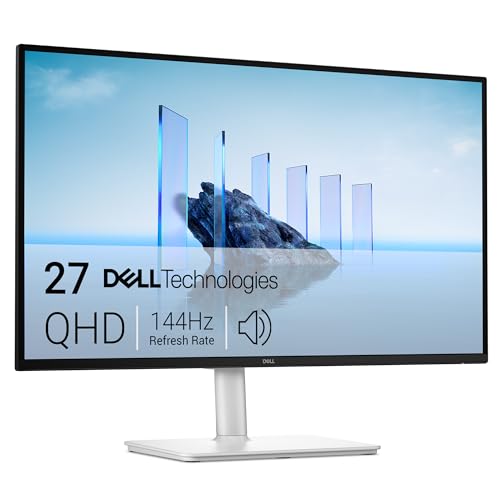 Dell 27 Plus QHD USB-C Monitor S2725DC |
| Check price on Amazon |
Key takeaways
- Compare five vertical monitors for coding and work, from a 24.5-inch portrait pick to dual-mode 4K displays, judged on stated pivot and vertical wording.
A vertical monitor is a standard display turned on its side, so long pages of code, contracts, and chat threads fit on one screen without scrolling sideways. The deciding feature is the stand: a monitor that pivots a full 90 degrees into portrait orientation works as a vertical display out of the box, while a fixed stand needs a separate VESA arm. This guide compares five monitors whose listing wording states vertical or pivot use, covering compact portrait screens, dual-mode displays, and a USB-C office monitor.
Every pick states the monitor form, vertical-orientation wording, and its brand literally in its own listing wording. Two picks state the word vertical literally, while three state pivot wording, so the vertical-framing basis is stated openly and the API re-check must confirm vertical use. Four picks also appear in a same-topic roundup on a sister site, so this guide reuses them as cross-site overlap with that file governing. All five ASIN lines carry a warning marker because each listing was corroborated indirectly.
Quick Picks
As an Amazon Associate we earn from qualifying purchases.
| Product | Best for | Key spec |
|---|---|---|
| CRUA 27-Inch Dual Mode Gaming Monitor | Vertical stand with 90-degree pivot | 4K 160Hz / FHD 320Hz dual mode |
| KTC 25M2 Pro Gaming Monitor | Compact vertical second screen | 24.5-inch 1080p with shielding hood |
| LG 27G810A-B UltraGear Gaming Monitor | Dual-mode 4K and high-refresh play | Pivot stand with G-Sync |
| GAMEPOWER Rapid 27-Inch Gaming Monitor | High-refresh portrait gaming | Pivot-adjustable 1080p IPS display |
| Dell 27 Plus QHD USB-C Monitor S2725DC | Single-cable laptop desk | QHD with USB-C and pivot stand |
How to Choose
Check the Pivot Range Before Anything Else
A vertical monitor must rotate a full 90 degrees into portrait orientation, and the listing should state that rotation plainly. Look for pivot, portrait, or 90-degree rotation wording in the listing itself, and check whether the stand also adjusts height, tilt, and swivel so the rotated screen sits at eye level. A stand that only tilts cannot turn the panel sideways, and a fixed stand means buying a VESA arm separately. Confirm the pivot direction too, since some stands rotate clockwise only and others rotate either way. If the listing states pivot wording but not the word vertical, treat vertical use as framing to confirm, and check the VESA pattern as a fallback for arm mounting.
Match Resolution to Text Work
Resolution decides how sharp small text looks when a screen stands in portrait orientation. A 1080p panel at 24.5 inches keeps code and documents readable at arm’s length, while QHD at 27 inches adds room for two side-by-side panes in portrait mode. A 4K panel renders the crispest characters, which suits long reading sessions, but it also demands more graphics power and sharper scaling settings. Match the panel to the work: dense code and research papers reward higher pixel density, while chat, email, and task lists stay comfortable at 1080p. Check the panel type as well, since IPS panels keep colors and contrast steady at the angles a rotated screen creates.
Weigh Ports and Single-Cable Docking
Ports decide whether a vertical monitor fits a laptop desk without a tangle of adapters. USB-C with video input lets one cable carry the picture and charge the laptop, which keeps a narrow portrait setup tidy. HDMI and DisplayPort cover desktops and consoles, and a second HDMI port helps when the monitor doubles as a TV or meeting display. Built-in speakers matter more on a portrait second screen, since desk speakers often sit behind the rotated panel. Check the cable list in the listing, because a monitor that ships without the cable its port needs adds a separate purchase. Confirm the port versions as stated, since older ports can cap refresh rate at higher resolutions.
Plan the Desk Footprint and Second-Screen Role
A vertical monitor changes how much desk a display occupies, so measure before choosing a size. A 24.5-inch panel in portrait mode is narrow and suits a second screen beside a main landscape display, while a 27-inch panel in portrait mode stands tall and needs clearance above the desk. Check the stand footprint as well as the panel, since a wide base can crowd a keyboard on a shallow desk. Decide the role first: a portrait primary screen for coding wants a larger, sharper panel, while a portrait companion for chat and documents works well compact. Wall or arm mounting frees the desk entirely, so confirm the VESA pattern when the included stand looks too large.
The 5 Best Options
CRUA 27-Inch Dual Mode Gaming Monitor
- Best for: buyers who want vertical wording stated literally with a tall pivot range.
- 27-inch dual-mode IPS gaming monitor
- 4K 160Hz / FHD 320Hz dual modes
- Vertical stand with 90-degree pivot
- 110mm height adjustment, 30-degree swivel
buyers who want vertical wording stated literally with a tall pivot range.
the dual-mode switching needs the right cable for each refresh mode.
The CRUA is the vertical-stand pick, stating a dual-mode IPS gaming monitor with a vertical stand, 90-degree pivot, and 110mm height adjustment in its listing wording. Its 4K 160Hz and FHD 320Hz dual modes pair sharp desktop work with a high-refresh mode for games, while FreeSync and 120 percent sRGB cover smooth motion and wide color. The 30-degree swivel and tilt range help aim the rotated panel, and PIP/PBP splits the screen for two sources at once. It is the pick for buyers who want the word vertical stated literally and a tall pivot range for portrait coding.
KTC 25M2 Pro Gaming Monitor
- Best for: buyers who want a compact portrait second screen with a glare hood.
- 24.5-inch 1080p Fast IPS gaming monitor
- 1ms GTG response, Adaptive Sync
- Vertical monitors wording with shielding hood
- Tilt, swivel, pivot, and height adjustment
buyers who want a compact portrait second screen with a glare hood.
the listing states two different refresh figures, so neither is used as a headline spec here.
The KTC 25M2 Pro is the compact vertical pick, stating a vertical-monitors model with a shielding hood in its listing wording. Its 24.5-inch 1080p Fast IPS panel suits a portrait second screen beside a main display, where chat, guides, and file lists live in portrait while the main work stays landscape. The 1ms GTG response and Adaptive Sync keep motion clean, and the tilt, swivel, pivot, and height adjustment cover the full stand range. The hood helps in bright rooms where glare would otherwise wash out the panel. It is the pick for buyers who want the smallest portrait screen here and a hood for glare control.
LG 27G810A-B UltraGear Gaming Monitor
- Best for: buyers who want a premium dual-mode panel for gaming and portrait reading.
- 27-inch UltraGear IPS gaming monitor
- Dual-mode 4K UHD 180Hz / FHD 360Hz
- G-Sync, FreeSync Premium, DisplayHDR 400
- Tilt, swivel, height, and pivot stand
buyers who want a premium dual-mode panel for gaming and portrait reading.
the dual-mode switch changes resolution when the refresh mode changes.
The LG 27G810A-B is the dual-mode flagship pick, stating a 27-inch UltraGear IPS gaming monitor with a tilt, swivel, height, and pivot stand in its listing wording. Its dual-mode design runs 4K UHD at 180Hz or FHD at 360Hz, pairing crisp desktop work with a high-refresh mode for competitive play. G-Sync and FreeSync Premium cover tear-free motion, and DisplayHDR 400 adds brighter highlights for video and games. The pivot stand turns the panel into portrait orientation for long documents, so one display covers both gaming and vertical reading. It is the pick for buyers who want one premium panel for play and portrait work.
GAMEPOWER Rapid 27-Inch Gaming Monitor
- Best for: buyers who want the fastest panel here with a stated pivot range.
- 27-inch 1080p flat IPS gaming monitor
- 360Hz refresh rate, 1ms response
- Height, tilt, swivel, and pivot adjustment
- HDR10, anti-glare display, RGB lighting
buyers who want the fastest panel here with a stated pivot range.
the 1080p panel trades pixel density for refresh rate at this size.
The GAMEPOWER Rapid is the high-refresh pivot pick, stating a 27-inch gaming monitor with height, tilt, swivel, and pivot adjustment in its listing wording. Its 1080p flat IPS panel runs at 360Hz with a 1ms response, which suits fast games where motion clarity matters more than pixel density. HDR10 and the anti-glare display keep bright scenes readable, while FreeSync and G-Sync cover tear-free play across graphics cards. The pivot adjustment turns the panel vertical for documents and chat between matches, and the HDMI, DP, and USB ports cover desktop and console sources. It is the pick for buyers who rank refresh rate first and want pivot wording stated plainly.
Dell 27 Plus QHD USB-C Monitor S2725DC
- Best for: laptop users who want USB-C docking and a pivot stand for documents.
- 27-inch QHD (2560×1440) 144Hz display
- 1ms response, AMD FreeSync
- 2 x 3W built-in speakers
- USB-C, HDMI, DisplayPort 1.4
laptop users who want USB-C docking and a pivot stand for documents.
the USB-C cable in the box should be checked against the laptop’s video output.
The Dell S2725DC is the USB-C office pick, stating a 27-inch QHD monitor with height, tilt, pivot, and swivel adjustment in its listing wording. Its 2560 by 1440 panel at 144Hz keeps text sharp for documents and code, while the two 3W speakers cover calls and video without desk speakers. USB-C, HDMI, and DisplayPort 1.4 inputs cover laptops, desktops, and consoles, and AMD FreeSync smooths motion across sources. The pivot stand turns the screen vertical for long documents, and the Ash White finish suits bright home offices. It is the pick for laptop users who want single-cable docking with a stated pivot range.
Which One Fits Your Situation
If You Code in Long Files All Day
Choose the CRUA or the LG for long coding sessions, since both pair a tall pivot range with sharp panels for small text. The CRUA states vertical wording literally with dual-mode refresh rates, while the LG adds a premium dual-mode panel with G-Sync. Set the stand so the top of the rotated screen sits near eye level, with the main editor in portrait and a terminal beside it. Either panel turns a long file into one continuous column.
If You Read Contracts and Research Papers
Choose the Dell S2725DC for reading-heavy work, since its QHD panel renders small print crisply and its USB-C input keeps a laptop desk to one cable. The pivot stand turns the screen vertical for full-page documents, and the built-in speakers cover video calls without extra hardware. The KTC works as a cheaper portrait companion when a main landscape display already handles drafting. Keep brightness moderate and the panel at arm’s length to reduce eye strain across long reading sessions.
If You Run a Portrait Second Screen for Chat
Choose the KTC 25M2 Pro as a portrait companion, since its compact 24.5-inch panel fits beside a main display without crowding the desk. Chat, email, and task lists live in the narrow portrait column while the main screen stays landscape for drafting. The shielding hood helps when the second screen faces a window, and the pivot stand lets the panel return to landscape. Set the companion at the same height as the main display for natural movement between screens.
If Your Desk Is Narrow or Shared
Choose the KTC or the Dell for a narrow or shared desk, since both keep the footprint small in portrait mode. The KTC is the narrower panel and suits a tight corner, while the Dell adds USB-C docking that removes cable clutter. Measure the clearance above the desk before buying, because a 27-inch panel in portrait mode stands taller than most shelves allow. A VESA arm frees the desk when the included stand base proves too wide.
Common Mistakes
- Buying a monitor whose stand only tilts and cannot rotate into portrait orientation.
- Assuming every listing with pivot wording rotates a full 90 degrees without checking the stated range.
- Choosing a 27-inch panel for a portrait role without measuring the clearance above the desk.
- Ignoring the cable list and discovering the needed USB-C or DisplayPort cable is not included.
- Judging a portrait screen by its landscape refresh rate instead of its text sharpness at arm’s length.
Frequently Asked Questions
Do all pivot monitors rotate a full 90 degrees?
Most pivot stands rotate a full 90 degrees, but the range is not universal. Check the listing for an explicit 90-degree pivot statement rather than assuming tilt or swivel covers rotation. Some stands rotate clockwise only, which matters when the desk layout favors one side. Confirm the rotation range before posting when no degree figure is stated, since a partial pivot cannot hold a true vertical image.
Is a vertical monitor good for gaming?
A vertical monitor suits portrait-friendly games and second-screen roles, but most games are designed for landscape play. Dual-mode monitors in this guide handle both roles, running landscape for games and portrait for documents and chat. A high-refresh panel keeps games smooth in landscape, while the pivot stand covers vertical reading between matches. Buyers who play landscape titles should treat pivot as a bonus, not the main reason to buy.
What resolution suits a vertical monitor best?
QHD at 27 inches suits vertical work best, since it renders small text crisply with room for two panes in portrait mode. A 1080p panel at 24.5 inches stays readable and takes less space, for a portrait companion screen. A 4K panel is sharpest but needs stronger graphics hardware and scaling. Match the choice to the role: companions suit 1080p, while a portrait screen rewards QHD or 4K.
Can I use a vertical monitor with a laptop?
Yes, when the monitor offers the port the laptop needs and the laptop supports an external portrait display. USB-C with video input is tidy, since one cable carries the picture and charges the laptop. HDMI and DisplayPort work well with an adapter, and the operating system handles rotation once the cable connects. Check that the laptop’s graphics output supports the monitor’s resolution and refresh rate at the port.
FAQ
Do all pivot monitors rotate a full 90 degrees?
Is a vertical monitor good for gaming?
What resolution suits a vertical monitor best?
Can I use a vertical monitor with a laptop?
More from Amazon
Programs that pair well with the guide above. Offers and eligibility are set by Amazon and may change.
Free shipping on eligible items, Prime Video and more. Eligible new members can start with a free trial.
Start a Prime free trialA Prime membership for ages 18-24 with a trial period. Eligibility is set by Amazon.
See Prime for Young AdultsAudiobooks and podcasts to listen to on the go. Eligible new members can start with a free trial.
Try Audible freeAd-free music streaming. Eligible new subscribers can start with a free trial.
Try Music Unlimited freeAs an Amazon Associate we earn from qualifying purchases.