Our Short List of 3

- Best for: Everyday Series S play across shooters, racers and adventure games, with a stand that adjusts to any desk.
- 27-inch 1440p IPS panel
- 165Hz refresh rate
- 1ms MPRT response time
- G-Sync Compatible

- Best for: Colourful games and a desk shared with a laptop, where the KVM switch earns its keep daily.
- 27-inch 1440p IPS panel
- 144Hz refresh rate
- 1ms response time
- 92% DCI-P3 colour coverage

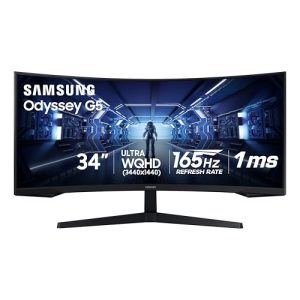
- Best for: Immersive single-player games on a curved screen, especially racers and adventure titles.
- 27-inch QHD curved VA panel, 1000R
- 165Hz refresh rate
- 1ms response time
- HDR10 support
All 4 Picks at a Glance
| Product | Specs | Action |
|---|---|---|
| ASUS TUF Gaming VG27AQ |
| Check price on Amazon |
| Gigabyte G27Q |
| Check price on Amazon |
| Samsung Odyssey G5 |
| Check price on Amazon |
 MSI Optix G274QPF-QD |
| Check price on Amazon |
Key takeaways
- Find the best gaming monitors for xbox series s with sharp 1440p panels, high refresh rates and low lag. Compare four screens built for smooth console play.
The Xbox Series S is built around 1440p gaming, so the right monitor meets the console where it already is. A 1440p screen at 120Hz shows the console at its best, while a 4K panel adds cost without adding detail the console rarely renders. The real gains come from refresh rate, response time and low input lag, which keep fast games readable and controls feeling direct. Pick the screen that matches the console’s strengths and the rest falls into place. A monitor bought for the Series S can also serve a PC.
This guide is written for Series S owners setting up a desk or bedroom station, players moving from a television to a dedicated screen, and anyone who wants a monitor that also works with a PC. Every monitor below was chosen from the name and specifications shown on its Amazon page, with resolution, refresh rate and panel type checked against the listing. We also flag listing details to confirm before ordering.
Quick Picks
As an Amazon Associate we earn from qualifying purchases
| Product | Best for | Key spec from title |
|---|---|---|
| ASUS TUF Gaming VG27AQ | All-round console play | 27-inch 1440p 165Hz IPS |
| Gigabyte G27Q | Colour and a second device | 27-inch 1440p 144Hz IPS |
| Samsung Odyssey G5 | Curved immersion on a budget | 27-inch QHD 165Hz curved VA |
| MSI Optix G274QPF-QD | Fastest refresh in the group | 27-inch 1440p 170Hz Rapid IPS |
How to Choose
Why 1440p Is the Sweet Spot
The Series S renders most games at 1440p or below, then upscales when needed, so a 1440p monitor shows the native image without waste. A 1080p screen looks softer on a 27-inch panel, while a 4K screen costs more and the console rarely feeds it a true 4K signal. At 1440p the pixel density stays sharp at desk distance, and the console can hold higher frame rates than it manages at 4K. That balance of sharpness and smoothness is exactly what a Series S setup needs. At 27 inches the pixel density stays high, so text and fine detail stay sharp at desk distance.
Refresh Rate and 120Hz Modes
The Series S supports 120Hz output in compatible games, so a monitor with at least 120Hz over HDMI is the baseline for smooth play. A 144Hz, 165Hz or 170Hz panel covers that mode with headroom for PC use, where higher frame rates are common. Variable refresh rate support matters too, because it smooths out frame dips without tearing. Check that the high refresh rate works through HDMI, since the console has no DisplayPort, and confirm the monitor lists 120Hz at 1440p rather than only at lower resolutions. Read the fine print, since some monitors list 120Hz only at lower resolutions.
Input Lag Decides How Controls Feel
Input lag is the delay between pressing a button and seeing the result, and it matters more than any other number for how a game feels. A monitor with low input lag makes aiming and timing feel direct, while a slow screen adds a floaty delay that no refresh rate can hide. Gaming monitors in this class usually measure well, yet televisions vary widely, which is one reason a dedicated monitor often feels better than a living-room TV. Game mode settings that bypass extra image processing also help keep lag down. Wireless controllers add a small delay of their own, so a low-lag screen matters even more.
Curved or Flat Comes Down to Taste
A curved screen wraps the image around your view and suits single-player games and racing titles, where immersion matters. A flat panel keeps straight lines true, which suits strategy games and desktop work alongside the console. At 27 inches the curve is a gentle effect rather than a dramatic one, so neither choice is wrong. Sit at your usual distance and picture the screen in the room, because a curve that looks good on a desk can feel odd when viewed from a bed or sofa. A monitor arm lets you swing the screen between desk and bed without moving the console.
The 4 Best Options
ASUS TUF Gaming VG27AQ
- Best for: Everyday Series S play across shooters, racers and adventure games, with a stand that adjusts to any desk.
- 27-inch 1440p IPS panel
- 165Hz refresh rate
- 1ms MPRT response time
- G-Sync Compatible
Everyday Series S play across shooters, racers and adventure games, with a stand that adjusts to any desk.
The built-in speakers are basic, so headphones or external speakers help for longer sessions.
The ASUS TUF Gaming VG27AQ is the steady all-rounder for a Series S desk. Its 27-inch IPS panel runs at 165Hz with a 1ms moving-picture response, keeping fast shooters and racers clean at 1440p. G-Sync compatibility and ELMB motion blur reduction add smoothness when frame rates vary, and the HDR10 support lifts bright scenes without fuss. The stand adjusts for height, tilt and pivot, which helps when the same desk hosts homework or work. It does everything a Series S owner needs without a standout weakness. Its matte coating also cuts reflections in bright rooms.
Watch out for: The built-in speakers are basic, so headphones or external speakers help for longer sessions.
Gigabyte G27Q
- Best for: Colourful games and a desk shared with a laptop, where the KVM switch earns its keep daily.
- 27-inch 1440p IPS panel
- 144Hz refresh rate
- 1ms response time
- 92% DCI-P3 colour coverage
Colourful games and a desk shared with a laptop, where the KVM switch earns its keep daily.
Contrast in dark scenes is weaker than on VA panels, so night scenes look flatter.
The Gigabyte G27Q suits players who want strong colour and a second device on the same desk. Its IPS panel covers 92 percent of the DCI-P3 colour range, so games look vivid without calibration, and the 144Hz refresh rate keeps motion smooth at 1440p. A built-in KVM switch lets one keyboard and mouse serve the console setup and a laptop, which is handy in a shared room. HDR support and a height-adjustable stand round out a screen that works as well for study as for play. The stand adjusts for height, keeping long sessions comfortable.
Watch out for: Contrast in dark scenes is weaker than on VA panels, so night scenes look flatter.
Samsung Odyssey G5
- Best for: Immersive single-player games on a curved screen, especially racers and adventure titles.
- 27-inch QHD curved VA panel, 1000R
- 165Hz refresh rate
- 1ms response time
- HDR10 support
Immersive single-player games on a curved screen, especially racers and adventure titles.
Colours shift slightly when viewed from a sharp side angle, so sit centred for the best picture.
The Samsung Odyssey G5 brings a curved screen to a Series S setup without stretching the budget. Its 27-inch QHD panel bends at 1000R, wrapping the image around your field of view for racing and adventure games, while the 165Hz refresh rate and 1ms response keep motion sharp. The VA panel gives deeper blacks than IPS rivals, so night scenes hold more atmosphere. HDR10 support adds brightness to highlights, and the slim stand leaves desk space for the console itself. The slim bezels keep the focus on the picture, not the frame.
Watch out for: Colours shift slightly when viewed from a sharp side angle, so sit centred for the best picture.
MSI Optix G274QPF-QD
- Best for: Competitive shooters where the fastest panel wins, and PC play that uses the full refresh rate.
- 27-inch 1440p Rapid IPS panel
- 170Hz refresh rate
- 1ms response time
- VESA DisplayHDR 400
Competitive shooters where the fastest panel wins, and PC play that uses the full refresh rate.
The listing title drops the QD suffix, so confirm the model name on the page before ordering.
The MSI Optix G274QPF-QD is the fastest screen in this group, with a 170Hz Rapid IPS panel that keeps motion crisp in the quickest games. Quantum dot colour gives the image a vivid look without oversaturation, and the 1ms response time pairs with the high refresh rate for clean tracking in shooters. HDR400 support and a USB-C port add value when the monitor also serves a laptop, while the wide colour coverage suits creative work between sessions. It is the pick when raw speed matters most. The wide colour coverage also suits photo editing between sessions.
Watch out for: The listing title drops the QD suffix, so confirm the model name on the page before ordering.
Which One Fits Your Situation
For Competitive Shooters
Fast multiplayer rewards the MSI Optix G274QPF-QD, whose 170Hz panel and 1ms response keep enemies readable during quick turns. The ASUS TUF Gaming VG27AQ is the close second, with motion blur reduction that helps tracking. Either one keeps input lag low and the picture clean when the pace rises. A wired controller can shave a little more delay when every millisecond counts.
For Story and Adventure Games
Single-player adventures shine on the Samsung Odyssey G5 and the Gigabyte G27Q. The curved VA panel of the Samsung wraps dark scenes in atmosphere, while the Gigabyte screen renders wide colour that makes open worlds look rich. Both suit long evening sessions where immersion matters more than raw speed. Either screen also handles movie nights well, with wide colour and deep contrast.
For a Desk Shared with a PC
A shared desk favours the Gigabyte G27Q and the MSI Optix G274QPF-QD. The Gigabyte KVM switch shares one keyboard and mouse between machines, while the MSI USB-C port connects a laptop with a single cable. Both run at high refresh rates from a graphics card, so neither machine compromises. Keep both inputs connected and switch with a button press.
For a Bedroom Setup
A bedroom station needs a screen that works from a bed as well as a chair. The Samsung Odyssey G5 suits this best, since the curve keeps the image engaging at an angle and the VA panel holds contrast in a dim room. Mount it on an arm if desk space is tight, and keep the console within easy reach of the controller. A monitor arm frees desk space for the console.
Common Mistakes
- Buying a 4K monitor for a console that renders most games at 1440p.
- Picking a screen whose 120Hz mode only works over DisplayPort.
- Ignoring input lag and judging a monitor by refresh rate alone.
- Choosing a curved screen without picturing it from the bed or sofa.
- Forgetting audio and relying on thin built-in speakers for every game.
Frequently Asked Questions
Is 1440p better than 4K for Xbox Series S?
Yes, for most owners. The Series S renders most games at 1440p or below, so a 1440p monitor shows the native picture while a 4K screen adds cost the console rarely uses. A 1440p panel also lets the console hold higher frame rates, which matters more than extra pixels in fast games. It also costs less.
Does the Series S support 120Hz on a monitor?
Yes, in games that offer a 120Hz mode, provided the monitor accepts 120Hz at 1440p over HDMI. Check the listing for 120Hz support over HDMI specifically, because some monitors only reach their top refresh rate through DisplayPort. A 144Hz or faster panel covers the mode comfortably. Check the listing for 120Hz over HDMI specifically.
Do I need HDMI 2.1 for the Series S?
No, HDMI 2.0 carries 1440p at 120Hz, which is all the Series S needs. HDMI 2.1 becomes important only for 4K at 120Hz, which this console rarely targets. Spend the money on refresh rate, response time and panel quality instead of a port the console cannot use fully. HDMI 2.0 handles 1440p at 120Hz without trouble.
Can I use the same monitor for a Series S and a PC?
Yes, and most 1440p gaming monitors are built for exactly that. Look for DisplayPort alongside HDMI so the PC can use the full refresh rate, and a USB hub or KVM switch to share peripherals. Both machines can stay connected, switching inputs with a button press.
FAQ
Is 1440p better than 4K for Xbox Series S?
Does the Series S support 120Hz on a monitor?
Do I need HDMI 2.1 for the Series S?
Can I use the same monitor for a Series S and a PC?
More from Amazon
Programs that pair well with the guide above. Offers and eligibility are set by Amazon and may change.
Free shipping on eligible items, Prime Video and more. Eligible new members can start with a free trial.
Start a Prime free trialA Prime membership for ages 18-24 with a trial period. Eligibility is set by Amazon.
See Prime for Young AdultsAudiobooks and podcasts to listen to on the go. Eligible new members can start with a free trial.
Try Audible freeAd-free music streaming. Eligible new subscribers can start with a free trial.
Try Music Unlimited freeAs an Amazon Associate we earn from qualifying purchases.