Our Short List of 3
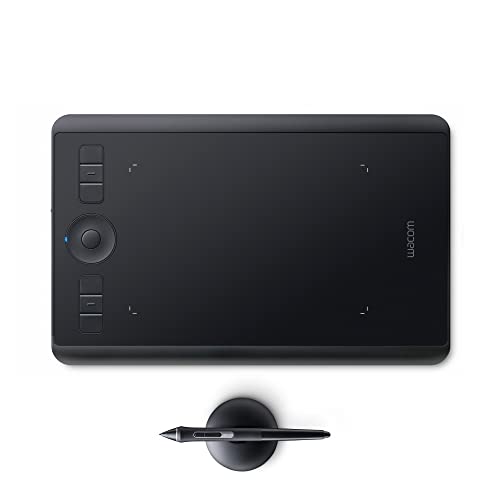
- Best for: illustrators and photo editors who want pro-level pen control in a small footprint.
- Model: PTH460K0A
- Active area: 6.3 x 3.9 inches
- Pen: Wacom Pro Pen 2, battery-free
- Pressure levels: 8,192
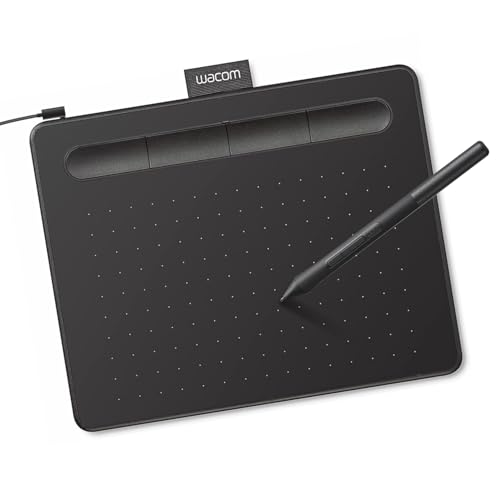
- Best for: beginners, students, and teachers who want a dependable wired starter tablet.
- Model: CTL4100
- Active area: 6.0 x 3.7 inches
- Pen: Wacom Pen 4K (LP-1100K), battery-free
- Pressure levels: 4,096

- Best for: students and travelers who want strong pen specs in a sleeve-friendly body.
- Active area: 6 x 4 inches
- Pen: PW100 battery-free stylus
- Pressure levels: 8,192
- Tilt support: listed
All 4 Picks at a Glance
| Product | Specs | Action |
|---|---|---|
| Wacom Intuos Pro Small |
| Check price on Amazon |
| Wacom Intuos Small |
| Check price on Amazon |
| HUION Inspiroy H640P |
| Check price on Amazon |
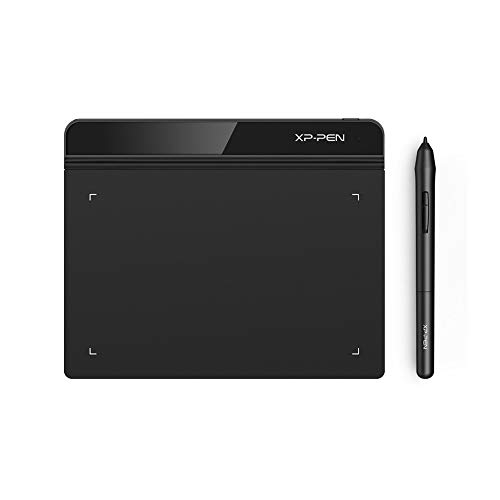 XP-PEN Star G640 |
| Check price on Amazon |
Our Top Picks
The real decision with a pen tablet is not which model has the longest feature list, but how the pen and surface will feel under your hand for hours at a time. A tablet that is too small cramps detailed line work, one with a weak pen makes shading feel like guesswork, and shortcut controls decide whether your other hand stays on the keyboard or keeps reaching for it.
This guide is for first-time digital artists, students moving from sketchbooks to software, designers who retouch photos daily, and hobbyists who want a compact pad for notes and quick concepts. Each pick below is a screen-free pen tablet, chosen from the names and specifications on its Amazon product page, and the four differ mainly in surface size, pen pressure, and controls.
Quick Picks
As an Amazon Associate we earn from qualifying purchases.
| Product | Best for | Key spec from title |
|---|---|---|
| Wacom Intuos Pro Small | Serious illustrators | Pro Pen 2 with 8,192 pressure levels |
| Wacom Intuos Small | Beginners and students | Pen 4K with 4,096 pressure levels |
| HUION Inspiroy H640P | Compact desks | 6 x 4 inch surface, 6 hot keys |
| XP-PEN Star G640 | Travel and rhythm games | 2 mm thin body, 6 x 4 inch surface |
How to Choose
Match the Active Area to Your Monitor and Stroke Style
Active area is the part of the surface that maps to your screen, and it shapes how your arm moves. A 6 x 4 inch area pairs naturally with a laptop display and short, wrist-driven strokes, which suits sketching, note taking, and photo retouching. Larger areas ask for broader arm movement and reward long, sweeping lines, but they also claim more desk space beside your keyboard. If you work on a big external monitor, a small area can feel twitchy because tiny hand movements jump far on screen, so match the tablet footprint to the display you actually use every day.
Read Pen Pressure and Tilt as a Pair
Pressure levels describe how many steps of force the pen can report, and the jump from 4,096 to 8,192 levels mostly shows up in gentle shading and soft brush edges rather than bold lines. Tilt recognition matters just as much for anyone who shades with the side of a virtual brush, because a pen that senses angle can widen strokes the way a real pencil does. Battery-free pens are worth preferring at any level, since they never need charging and stay light during long sessions. Check the listing for both figures instead of chasing the biggest pressure number alone.
Count the Controls You Will Actually Press
Shortcut keys on the tablet body and buttons on the pen replace the keyboard commands you repeat most, such as undo, brush size changes, and zooming. Four keys cover the basics for casual work, while six or more, or a touch ring for smooth zoom and scroll, suit people editing photos layer after layer. Think about your dominant software and the three commands your left hand reaches for constantly, then pick the layout that puts those within a finger’s reach. Controls you cannot reprogram are far less useful, so confirm the keys are customizable in the listing.
Confirm Compatibility Before Anything Else
A pen tablet only works once its driver agrees with your computer, so verify your operating system against the listing first. Most models here cover Windows and macOS, several add Chromebook support for school machines, and a few connect to Android phones for sketching away from a desk. None of that helps an iPad owner, because these pads are computer accessories rather than iOS devices. Also check the connection type: a wired USB pad never needs charging, while Bluetooth models free the cable but add a battery inside the tablet body to manage.
The 4 Best Options
Wacom Intuos Pro Small
- Best for: illustrators and photo editors who want pro-level pen control in a small footprint.
- Model: PTH460K0A
- Active area: 6.3 x 3.9 inches
- Pen: Wacom Pro Pen 2, battery-free
- Pressure levels: 8,192
illustrators and photo editors who want pro-level pen control in a small footprint.
offers on this listing vary, so confirm whether the unit on offer is new or renewed before ordering.
The Intuos Pro Small is the pick for artists who already know a pen tablet will anchor their desk for years. Its Pro Pen 2 reports 8,192 pressure levels with tilt recognition, so pencil-style shading and soft airbrush work behave predictably, and the Touch Ring gives your free hand a smooth way to zoom or rotate the canvas. Bluetooth keeps the cable off the desk when you want it gone, and the compact body still leaves room for a keyboard in front of a monitor.
Watch out for: offers on this listing vary, so confirm whether the unit on offer is new or renewed before ordering.
Wacom Intuos Small
- Best for: beginners, students, and teachers who want a dependable wired starter tablet.
- Model: CTL4100
- Active area: 6.0 x 3.7 inches
- Pen: Wacom Pen 4K (LP-1100K), battery-free
- Pressure levels: 4,096
beginners, students, and teachers who want a dependable wired starter tablet.
this wired model has no Bluetooth, and the 6.0 x 3.7 inch area feels small against a large desktop monitor.
For a first tablet, the Intuos Small keeps the learning curve gentle. The Pen 4K is battery-free and reports 4,096 pressure levels, which is plenty for sketching, inking, and learning how digital brushes respond, while four customizable ExpressKeys put undo and brush changes beside your drawing hand. It connects by USB cable, so there is nothing to charge and setup stays simple, and the bundled training and software downloads help a new owner start drawing the same day the box arrives.
Watch out for: this wired model has no Bluetooth, and the 6.0 x 3.7 inch area feels small against a large desktop monitor.
HUION Inspiroy H640P
- Best for: students and travelers who want strong pen specs in a sleeve-friendly body.
- Active area: 6 x 4 inches
- Pen: PW100 battery-free stylus
- Pressure levels: 8,192
- Tilt support: listed
students and travelers who want strong pen specs in a sleeve-friendly body.
it does not work with iPhone or iPad, and the connection is wired USB only.
The Inspiroy H640P packs the most pen performance into the smallest body here. Its battery-free PW100 stylus reports 8,192 pressure levels with tilt support, matching tablets well above its tier, and six customizable hot keys sit along the left edge where your free hand rests. At about a third of an inch thin and well under a pound, it slides into a laptop sleeve without complaint. Support for Windows, Mac, Linux, and Android also makes it the flexible choice for households and classrooms that mix different computers.
Watch out for: it does not work with iPhone or iPad, and the connection is wired USB only.
XP-PEN Star G640
- Best for: commuters, students, and osu players who want the slimmest pad that still draws properly.
- Model: G640
- Active area: 6 x 4 inches
- Pen: PN01 battery-free stylus with 2 side buttons
- Pressure levels: 8,192
commuters, students, and osu players who want the slimmest pad that still draws properly.
the featured offer on this listing can come from third-party sellers, so check who is selling the unit before ordering.
The Star G640 is built around one idea: be so thin and light that you stop noticing it in your bag. The body is only 2 mm thick and weighs 170 grams, yet the 6 x 4 inch surface still reports 8,192 pressure levels through the battery-free PN01 pen, whose two side buttons carry your shortcuts because the tablet itself has none. That simplicity, plus plug-and-play behavior on Chromebooks, makes it a favorite for online classes, quick annotations, and rhythm games where a fast, flat surface matters more than buttons.
Watch out for: the featured offer on this listing can come from third-party sellers, so check who is selling the unit before ordering.
Which One Fits Your Situation
You Are Buying Your First Drawing Tablet
Start with the Wacom Intuos Small. Its 4,096 pressure levels cover everything a beginner practices, from line exercises to first attempts at shading, and the four ExpressKeys teach you shortcut habits that transfer to any bigger tablet later. The wired connection removes charging from the routine, and the included training material shortens the awkward first week when drawing on a pad while watching a screen feels strange.
You Draw or Retouch Photos Every Day
The Intuos Pro Small earns its place when the tablet is a daily work tool. The Pro Pen 2 doubles the pressure range of the starter models and adds the control that detailed retouching and inking demand, while the Touch Ring speeds through zoom, brush size, and canvas rotation without touching the keyboard. Bluetooth also helps a tidy desk stay tidy when the tablet shares space with a keyboard and mouse.
Your Desk Is Small or Shared
Choose the HUION Inspiroy H640P when space is the hard limit. Its footprint fits beside a laptop in a dorm room, a shared family desk, or a classroom workstation, and the six hot keys compensate for the small surface by keeping common commands close. It also tolerates mixed computer households, since the same pad works across Windows, Mac, Linux, and Android machines without extra hardware.
You Work in More Than One Place
The XP-PEN Star G640 suits anyone who draws at home, annotates in class, and answers mail from a café. At 2 mm thin it disappears into the same sleeve as the laptop, and the pen needs no charging stop before a session. You give up on-body shortcut keys, so lean on the two pen buttons and keyboard commands, a fair trade for a pad this easy to carry everywhere.
Common Mistakes
- Buying by pressure levels alone, when surface size and pen feel change daily comfort far more.
- Assuming a pen tablet works with an iPad, when these models are built for computers and Android devices.
- Picking the largest surface for a laptop screen, which makes small hand movements feel exaggerated.
- Ignoring whether shortcut keys can be reprogrammed for the software you actually use.
- Forgetting that a screen-free tablet takes practice, because your hand moves on the desk while your eyes stay on the monitor.
Frequently Asked Questions
Do pen tablets work with free drawing software?
Yes. The tablets in this guide work with widely used free programs such as Krita, MediBang Paint, and GIMP, along with the major paid applications named in their listings. The tablet simply reports pen position and pressure to the computer, so any software that accepts pen input can use those signals for brushes, erasers, and selection tools.
How long does it take to get used to drawing without a screen?
Most people need several short sessions before the hand-eye split feels natural, and drawing daily speeds that adjustment considerably. Start with sketching and note taking rather than finished pieces, keep the tablet square to your monitor, and resist shrinking the active area in settings, because a consistent mapping between hand movement and cursor travel is what builds reliable muscle memory.
Is a bigger pressure number always better?
Not in practice. Moving from 4,096 to 8,192 levels refines very light strokes and gradual shading, yet beginners rarely press softly enough for the difference to show in finished work. Pen stability, driver quality, and a surface texture you enjoy matter more day to day. Choose the higher figure when your style already depends on delicate pressure control, not as a default upgrade.
Can left-handed users use these tablets?
Yes. Pen tablets are symmetrical input surfaces, and the drivers for these models let you rotate the working area or flip the orientation so the shortcut keys sit on the side away from your drawing hand. The HUION Inspiroy H640P listing specifically notes left-handed support. Set the orientation once during setup and the pen mapping stays consistent across applications.
FAQ
Do pen tablets work with free drawing software?
How long does it take to get used to drawing without a screen?
Is a bigger pressure number always better?
Can left-handed users use these tablets?
More from Amazon
Programs that pair well with the guide above. Offers and eligibility are set by Amazon and may change.
Free shipping on eligible items, Prime Video and more. Eligible new members can start with a free trial.
Start a Prime free trialA Prime membership for ages 18-24 with a trial period. Eligibility is set by Amazon.
See Prime for Young AdultsAudiobooks and podcasts to listen to on the go. Eligible new members can start with a free trial.
Try Audible freeAd-free music streaming. Eligible new subscribers can start with a free trial.
Try Music Unlimited freeAs an Amazon Associate we earn from qualifying purchases.