Our Short List of 3

- Best for: Photographers who both print and publish online, and want one panel that covers both color spaces.
- Screen size: 27 inches
- Resolution: 3840 x 2160 (4K UHD)
- Panel type: IPS
- Color gamut: 99 percent Adobe RGB, 99 percent DCI-P3, 100 percent sRGB

- Best for: Print-focused photographers who calibrate on a schedule and want the calibration stored in the monitor itself.
- Screen size: 27 inches
- Resolution: 3840 x 2160 (4K UHD)
- Panel type: IPS with fine-coated matte finish
- Color gamut: 99 percent Adobe RGB, 99 percent DCI-P3, 100 percent sRGB

- Best for: Mac-based photographers and designers who want screen color that tracks their laptop and phone displays.
- Screen size: 27 inches
- Resolution: 3840 x 2160 (4K UHD)
- Panel type: IPS
- Color gamut: 95 percent DCI-P3
All 4 Picks at a Glance
| Product | Specs | Action |
|---|---|---|
| ASUS ProArt Display PA279CRV |
| Check price on Amazon |
| BenQ PhotoVue SW272U |
| Check price on Amazon |
| BenQ DesignVue PD2706U |
| Check price on Amazon |
 ASUS ProArt Display PA279CV |
| Check price on Amazon |
Key takeaways
- Compare four monitors for photo editing, with Adobe RGB, DCI-P3 and sRGB coverage, factory calibration and USB-C, and pick the right one for your desk.
A photo editing monitor is really a decision about trust: whether the red you push in a portrait, or the green you pull back in a landscape, will still look that way when the file leaves your desk. The panel has to cover the color space your output uses, hold that accuracy at the brightness you actually work at, and stay consistent from corner to corner. Everything else, from stand design to port layout, matters only after those color questions are answered.
This guide is for photographers who print, editors who publish online, and designers who move between the two. The four monitors below were chosen from the names and specifications on their Amazon product pages, with priority given to stated color gamut coverage, factory calibration figures, and the calibration hardware each model supports.
Quick Picks
As an Amazon Associate we earn from qualifying purchases.
| Product | Best for | Key spec from title |
|---|---|---|
| ASUS ProArt Display PA279CRV | Print and screen work on one panel | 99 percent Adobe RGB and 99 percent DCI-P3 |
| BenQ PhotoVue SW272U | Serious print photographers | 99 percent Adobe RGB with 16-bit 3D LUT |
| BenQ DesignVue PD2706U | Mac-based designers | 95 percent P3 with 90W USB-C |
| ASUS ProArt Display PA279CV | Web and sRGB workflows | 100 percent sRGB and 100 percent Rec. 709 |
How to Choose
Match the Color Gamut to Your Output
Start with the color space your finished work lives in. Photographers who print, especially on fine art papers, benefit from wide Adobe RGB coverage, because printers can reproduce colors that fall outside the smaller sRGB space. Work that only appears on phones, browsers, and social feeds needs full sRGB coverage and little more. Mac users and anyone delivering video alongside stills should look at DCI-P3 figures. A monitor cannot show colors outside its gamut, so the coverage numbers in a listing are the first thing to compare, before size or resolution.
Understand Calibration and Delta E
Every listing here quotes a Delta E figure, which describes how far the panel’s displayed colors sit from the reference values; lower is better, and figures under 2 are generally beyond what most eyes can separate. Factory calibration gets you close on day one, but panels drift, so think about what happens later. Some monitors only accept software calibration through your graphics card, while photographer-focused models store calibration inside the monitor’s own lookup table, which keeps results consistent across computers and operating systems. If color is your income, that hardware path is worth planning for.
Weigh Resolution Against Working Distance
A 27-inch 4K panel packs enough pixels that individual dots disappear at a normal desk distance, which helps when you zoom into skin texture, hair, or fabric during retouching. It also means interface elements and text render small unless your software scales well. Larger screens spread the same resolution thinner, while smaller 4K panels can feel cramped for side-by-side comparisons. For most desks, 27 inches at 3840 by 2160 is the balanced point: room for a full image plus tool panels, with pixel density high enough that sharpening decisions stay honest.
Check Connections, Ergonomics, and Light Control
A USB-C input with power delivery lets a laptop drive the screen and charge over one cable, and the wattage in the listing tells you whether larger laptops stay charged under load. A built-in card reader shortens the trip from camera to screen, and a KVM switch matters if two computers share the desk. Height, tilt, and pivot adjustment keep the panel square to your eyes, which affects perceived contrast. Finally, consider your room: a matte coating or a shading hood keeps reflections from washing out shadow detail while you judge dark tones.
The 4 Best Options
ASUS ProArt Display PA279CRV
- Best for: Photographers who both print and publish online, and want one panel that covers both color spaces.
- Screen size: 27 inches
- Resolution: 3840 x 2160 (4K UHD)
- Panel type: IPS
- Color gamut: 99 percent Adobe RGB, 99 percent DCI-P3, 100 percent sRGB
Photographers who both print and publish online, and want one panel that covers both color spaces.
The 60Hz refresh rate suits stills work only, and the wide gamut modes need color-managed software, or colors can look oversaturated in unmanaged programs.
The PA279CRV is the rare mid-range panel that refuses to make you choose between print and screen color. Its 27-inch 4K IPS screen covers 99 percent of Adobe RGB for print work and 99 percent of DCI-P3 for video and Mac workflows, and ASUS factory calibrates each unit to a Delta E under 2 with Calman Verified status. A USB-C port with 96W of power delivery runs and charges a laptop over one cable, and DisplayPort daisy chaining lets a second monitor hang off the first.
Watch out for: The 60Hz refresh rate suits stills work only, and the wide gamut modes need color-managed software, or colors can look oversaturated in unmanaged programs.
BenQ PhotoVue SW272U
- Best for: Print-focused photographers who calibrate on a schedule and want the calibration stored in the monitor itself.
- Screen size: 27 inches
- Resolution: 3840 x 2160 (4K UHD)
- Panel type: IPS with fine-coated matte finish
- Color gamut: 99 percent Adobe RGB, 99 percent DCI-P3, 100 percent sRGB
Print-focused photographers who calibrate on a schedule and want the calibration stored in the monitor itself.
The hood and full-size stand take real desk depth, and the feature set is aimed at stills, so video editors get fewer extras than the spec sheet suggests.
BenQ builds the PhotoVue line for one job, and the SW272U is its flagship 27-inch 4K model. The panel covers 99 percent of Adobe RGB, and a 16-bit 3D lookup table with hardware calibration support means your calibration lives inside the monitor, staying put when you switch computers. The fine-coated matte surface and included shading hood fight reflections, an SD card reader sits in the frame, and the wireless Hotkey Puck G3 swaps color modes from the desk instead of through menus.
Watch out for: The hood and full-size stand take real desk depth, and the feature set is aimed at stills, so video editors get fewer extras than the spec sheet suggests.
BenQ DesignVue PD2706U
- Best for: Mac-based photographers and designers who want screen color that tracks their laptop and phone displays.
- Screen size: 27 inches
- Resolution: 3840 x 2160 (4K UHD)
- Panel type: IPS
- Color gamut: 95 percent DCI-P3
Mac-based photographers and designers who want screen color that tracks their laptop and phone displays.
It is sold through BenQ’s own Amazon store rather than by Amazon.com directly, and there is no Adobe RGB mode, so print-first workflows should look at the wider-gamut models above.
The PD2706U speaks the Mac dialect of color: its 27-inch 4K IPS panel covers 95 percent of the P3 space Apple devices use, with a factory Delta E of 3 or better and an M-Book mode tuned to match MacBook screens. BenQ’s ICCsync feature applies your color profile automatically, a KVM switch lets two computers share the panel and peripherals, and the Hotkey Puck G2 puts mode changes on the desk. USB-C carries video, data, and 90W of charging for a single-cable setup.
Watch out for: It is sold through BenQ’s own Amazon store rather than by Amazon.com directly, and there is no Adobe RGB mode, so print-first workflows should look at the wider-gamut models above.
ASUS ProArt Display PA279CV
- Best for: Web photographers, content editors, and anyone whose work is delivered in sRGB and never printed wide-gamut.
- Screen size: 27 inches
- Resolution: 3840 x 2160 (4K UHD)
- Panel type: IPS
- Color gamut: 100 percent sRGB, 100 percent Rec. 709
Web photographers, content editors, and anyone whose work is delivered in sRGB and never printed wide-gamut.
There is no Adobe RGB or DCI-P3 coverage beyond the standard spaces, and 65W of charging can fall behind on larger, power-hungry laptops under heavy load.
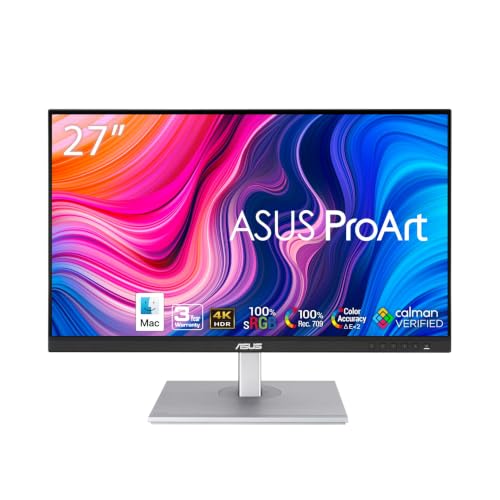
Not every editor needs a wide gamut. The PA279CV covers 100 percent of sRGB and 100 percent of Rec. 709, the two spaces that govern web images and standard video, and it ships factory calibrated to a Delta E under 2 with Calman Verified status. The 27-inch 4K IPS panel gives retouching work plenty of pixel density, a USB-C port with 65W of power delivery handles a laptop over one cable, and a built-in USB hub keeps card readers and drives plugged into the monitor instead of the computer.
Watch out for: There is no Adobe RGB or DCI-P3 coverage beyond the standard spaces, and 65W of charging can fall behind on larger, power-hungry laptops under heavy load.
Which One Fits Your Situation
You Print Your Photos Regularly
Printing is the least forgiving output, because the press or inkjet can reach colors your screen may not. Put the BenQ SW272U at the top of your list: hardware calibration, a 16-bit lookup table, and the shading hood all serve consistent print matching. The PA279CRV also covers 99 percent of Adobe RGB and works well if the same desk handles video, but the BenQ is the more single-minded print tool.
You Edit for the Web and Social Feeds
Online work lives entirely inside sRGB, so extra gamut buys you nothing and can even mislead in unmanaged apps. The PA279CV covers all of sRGB and Rec. 709, arrives calibrated, and keeps the desk tidy with USB-C and a hub. Spend the savings on a calibration device instead, and your published images will match what your audience sees on their own screens far more closely.
Your Desk Runs on a Mac Laptop
A MacBook workflow rewards P3 coverage and strong USB-C charging. The PD2706U matches the P3 space your laptop and phone already use, its M-Book mode narrows the gap between the two screens, and 90W of power delivery keeps a larger MacBook charged through an editing session. One cable on the desk also means the monitor swaps between home and studio machines in seconds.
Two Computers Share Your Monitor
Freelancers often keep a personal machine beside a work laptop. The PD2706U’s KVM switch moves the screen, keyboard, and mouse between the two with one control, and its Hotkey Puck G2 handles color modes at the same time. If your second machine is a desktop without USB-C video, check that the monitor’s DisplayPort and HDMI inputs cover both before you commit to a single-screen setup.
Common Mistakes
- Buying a wide-gamut monitor and then editing in software that ignores color profiles, which makes images look oversaturated on your screen and dull everywhere else.
- Never recalibrating after the first month, even though backlight output and panel behavior drift gradually over the life of the monitor.
- Judging shadow detail in a bright room with windows behind you, where reflections lift the blacks and hide problems that appear in print.
- Comparing monitors by resolution alone while ignoring gamut coverage, which is the specification that actually decides whether your output colors can be shown at all.
- Leaving the monitor in the wrong color mode, such as editing sRGB web work while the panel is set to its Adobe RGB preset.
Frequently Asked Questions
Do I need Adobe RGB coverage for photo editing?
Only if your work leaves the screen. Prints, especially on inkjet and fine art papers, can use colors that sit outside sRGB, and an Adobe RGB panel lets you see and control them. If everything you make is published online, full sRGB coverage is enough, and a wide-gamut panel mostly adds cost and extra color management discipline.
Is 4K resolution necessary on a 27-inch editing monitor?
It is not strictly necessary, but it helps. At 27 inches, 3840 by 2160 resolution hides individual pixels at a normal sitting distance, so you judge sharpening, noise, and fine retouching at something close to final size. A 1440p panel of the same size still works; you will simply zoom in more often to check detail, and text in your editing software will look less crisp.
How often should I calibrate a photo editing monitor?
A common rhythm is once a month for paid work, and every couple of months for hobby use. Panels drift slowly as the backlight ages, so regular calibration keeps the Delta E figures in the listing honest over time. Models with hardware calibration store the correction in the monitor, which keeps results consistent when you switch between computers or operating systems.
Can one monitor handle both photo and video editing?
Yes, if it covers both color families. Look for a panel that lists strong Adobe RGB coverage for stills and prints alongside DCI-P3 for video delivery, like the PA279CRV above. You also want a proper sRGB or Rec. 709 mode for final checks, since most viewers will see your work in those smaller spaces regardless of what you edited in.
FAQ
Do I need Adobe RGB coverage for photo editing?
Is 4K resolution necessary on a 27-inch editing monitor?
How often should I calibrate a photo editing monitor?
Can one monitor handle both photo and video editing?
More from Amazon
Programs that pair well with the guide above. Offers and eligibility are set by Amazon and may change.
Free shipping on eligible items, Prime Video and more. Eligible new members can start with a free trial.
Start a Prime free trialA Prime membership for ages 18-24 with a trial period. Eligibility is set by Amazon.
See Prime for Young AdultsAudiobooks and podcasts to listen to on the go. Eligible new members can start with a free trial.
Try Audible freeAd-free music streaming. Eligible new subscribers can start with a free trial.
Try Music Unlimited freeAs an Amazon Associate we earn from qualifying purchases.