Our Short List of 3

- Best compact first pen display: Wacom One 12 — View on Amazon
- Best 13.3-inch pen display for color work: HUION Kamvas 13 (Gen 3) — View on Amazon
- Best 13.3-inch pen display for shortcut controls: XP-PEN Artist 13.3 Pro V2 — View on Amazon
- Best large pen display for established Wacom users: Wacom Cintiq 16 — View on Amazon
- Fully laminated 13.3-inch display with anti-sparkle canvas glass
- Pen with 16,384 pressure levels and tilt support
- Strong color coverage, with 99 percent sRGB and 90 percent Adobe RGB listed
- No eight-key layout for artists who want many keys on the body
- Red dial and eight shortcut keys for fast tool changes
- Pen with 16,384 pressure levels and tilt support
- Fully laminated display with broad color coverage
- Heavier than the other 13.3-inch pick here
All 5 Picks at a Glance
| Product | Specs | Action |
|---|---|---|
| Our Top Picks |
| Check price on Amazon |
| HUION Kamvas 13 (Gen 3) |
| Check price on Amazon |
| XP-PEN Artist 13.3 Pro V2 |
| Check price on Amazon |
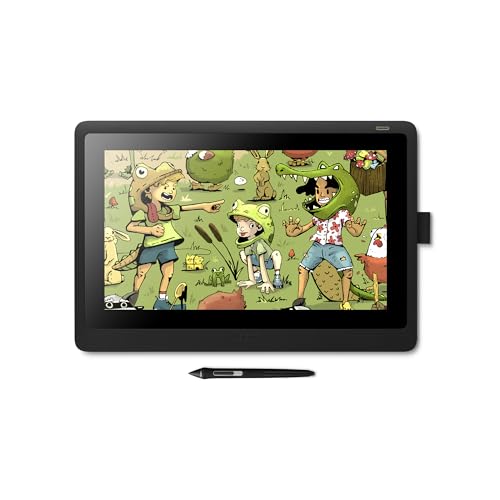 Wacom Cintiq 16 |
| Check price on Amazon |
 HUION Kamvas 16 (2021) |
| Check price on Amazon |
Key takeaways
- Find the best drawing tablets with screen for illustration, photo editing, and animation, with pen displays compared by size, pen, color, and setup.
As an Amazon Associate I earn from qualifying purchases.
The Short Answer
The best drawing tablets with screen for most artists are pen displays that let you draw directly on the image, rather than on a blank pad while watching a separate monitor. For a compact first pen display, choose the Wacom One 12, with an 11.6-inch Full HD display, a battery-free pen, and a USB-C connection on compatible computers. For more pen control and color accuracy in a similar footprint, choose the HUION Kamvas 13 (Gen 3), with a 13.3-inch fully laminated display, a pen with 16,384 pressure levels, and two dials.
For a larger working surface, the HUION Kamvas 16 (2021) and the Wacom Cintiq 16 both use a 15.6-inch Full HD display, and they suit broad arm movements and long desk sessions. The XP-PEN Artist 13.3 Pro V2 sits between those groups, with a 13.3-inch display, a red dial and eight shortcut keys, and a pen with 16,384 pressure levels. Every pick here is a pen display with a built-in screen, and every one needs a computer or a compatible device to work. None is a standalone tablet, and none is a screenless graphics tablet.
Our Top Picks
- Best compact first pen display: Wacom One 12 — View on Amazon
- Best 13.3-inch pen display for color work: HUION Kamvas 13 (Gen 3) — View on Amazon
- Best 13.3-inch pen display for shortcut controls: XP-PEN Artist 13.3 Pro V2 — View on Amazon
- Best large pen display for established Wacom users: Wacom Cintiq 16 — View on Amazon
Quick Comparison
| Tablet | Display | Pen pressure | Color coverage | Controls | Connection |
|---|---|---|---|---|---|
| Wacom One 12 | 11.6-inch Full HD, 1920 by 1080 | 4,096 levels | 99 percent sRGB | Pen buttons | USB-C |
| HUION Kamvas 13 (Gen 3) | 13.3-inch Full HD, fully laminated | 16,384 levels | 99 percent sRGB and Rec.709, 90 percent Adobe RGB | Dual dials and press keys | USB-C |
| XP-PEN Artist 13.3 Pro V2 | 13.3-inch Full HD, 1920 by 1080, fully laminated | 16,384 levels | 99 percent sRGB, 89 percent Adobe RGB, 95 percent P3 | Red dial and 8 shortcut keys | Full-featured USB-C, 3-in-1 cable included |
| Wacom Cintiq 16 | 15.6-inch Full HD, 1920 by 1080 | 8,192 levels | 72 percent NTSC | Pen buttons, foldable legs | 3-in-1 cable |
| HUION Kamvas 16 (2021) | 15.6-inch Full HD, 1920 by 1080, fully laminated | 8,192 levels | 120 percent sRGB volume | 10 express keys | USB-C, 3-in-1 cable |
How to Choose
Display size and desk space
An 11.6-inch display fits beside a laptop keyboard and suits wrist-driven strokes and travel. A 13.3-inch display is the middle ground, large enough for detailed line work without dominating a desk, and it matches many laptop screens. A 15.6-inch display gives room for sweeping lines and large canvases, but it needs a stable desk, a stand, and space for cables. Measure your desk first, leave room for your keyboard, and choose the largest display that still leaves room for your drawing arm.
Pressure levels and tilt
Pressure levels describe how many steps of force the pen can report. A pen with 4,096 levels already covers sketching, inking, and shading for most beginners. A pen with 8,192 levels gives finer control at the light end of a stroke, and a pen with 16,384 levels adds more headroom for very light touches. Tilt matters just as much when you shade with the side of a virtual brush, because a pen that senses angle can widen strokes the way a real pencil does. All five picks list tilt support, and every pen here is battery-free, so confirm the exact pen model on the listing before you buy.
Color coverage
If your work stays on screen, a display that covers 99 percent of sRGB is a strong baseline, and the Wacom One 12, the Kamvas 13 (Gen 3), and the Artist 13.3 Pro V2 all list that figure. If you prepare work for print, look for Adobe RGB coverage as well, which the Kamvas 13 (Gen 3) and the Artist 13.3 Pro V2 both list. The Cintiq 16 lists 72 percent NTSC, a narrower range, so it suits line work and learning more than color-critical print work. A fully laminated display reduces the gap between the pen tip and the cursor, called parallax, and the Kamvas 13 (Gen 3), the Artist 13.3 Pro V2, and the Kamvas 16 (2021) all list full lamination.
Controls, connection, and stand
Shortcut keys and dials replace commands you repeat most, such as undo, brush size, zoom, and canvas rotation. The Wacom One 12 keeps controls on the pen, the Kamvas 13 (Gen 3) adds two dials, the Artist 13.3 Pro V2 adds a red dial and eight keys, the Kamvas 16 (2021) adds ten express keys, and the Cintiq 16 has no keys on the body, so it suits keyboard users. Confirm on the listing that the keys and dials are customizable in the driver for your operating system.
A pen display only works once its driver and video connection agree with your computer, so verify your operating system against the listing first. The Wacom One 12 uses USB-C, and a single full-featured cable can carry video and data on a compatible computer, while other computers need a separate 3-in-1 cable. The Artist 13.3 Pro V2 includes both cable types, according to its listing, and the Cintiq 16 uses a 3-in-1 cable with a power adapter. For comfort, use the foldable legs on the Cintiq 16, the stand included with the Artist 13.3 Pro V2 and the Kamvas 16 (2021), or a separate tablet stand, because drawing flat for hours strains the wrist.
The Picks in Detail
Wacom One 12
The Wacom One 12 is the compact pick, for artists who want to draw on a screen without giving up desk space. Its 11.6-inch Full HD display shows 1920 by 1080 pixels, with 99 percent sRGB coverage listed by Wacom, and bonded etched glass that adds a paper-like texture. The Wacom One Pen reports 4,096 pressure levels with tilt support. Model code DTC121, weight about 0.7 kilograms, USB-C connection, and Windows, Mac, Android, and Chromebook compatibility listed by Wacom. Confirm on the listing what is included with the exact configuration you choose.
Pros
- Compact 11.6-inch display that fits small desks and travels well
- Bonded etched glass with a paper-like feel and low parallax
- Battery-free pen with 4,096 pressure levels and tilt support
Cons
- Smallest display here, so broad strokes can feel cramped
- No shortcut keys or dial on the tablet body
- Some computers need a separate 3-in-1 cable, so confirm on the listing
View the Wacom One 12 on Amazon
HUION Kamvas 13 (Gen 3)
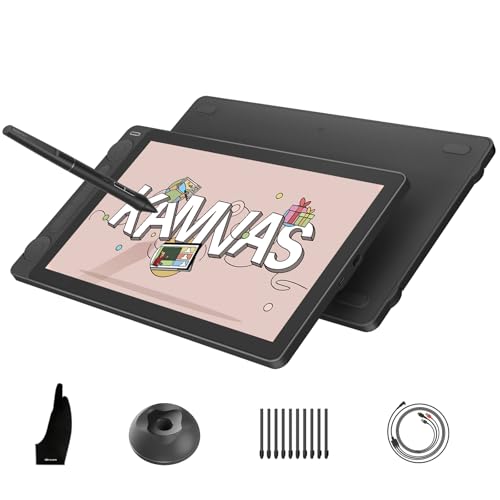
- Fully laminated 13.3-inch display with anti-sparkle canvas glass
- Pen with 16,384 pressure levels and tilt support
- Strong color coverage, with 99 percent sRGB and 90 percent Adobe RGB listed
- No eight-key layout for artists who want many keys on the body
The HUION Kamvas 13 (Gen 3) is the color-focused 13.3-inch pick, for illustrators who want a laminated screen, a high-resolution pen, and dial controls in a portable body. Its 13.3-inch fully laminated display uses anti-sparkle Canvas Glass 2.0, and Huion lists 99 percent sRGB and Rec.709 coverage, plus 90 percent Adobe RGB coverage, with factory color calibration. The PenTech 4.0 pen, model PW600L, reports 16,384 pressure levels with tilt support. Model code GS1333, weight about 865 grams, two dials and press keys, USB-C connection. It needs a computer to work.
Pros
Cons
View the HUION Kamvas 13 (Gen 3) on Amazon
XP-PEN Artist 13.3 Pro V2
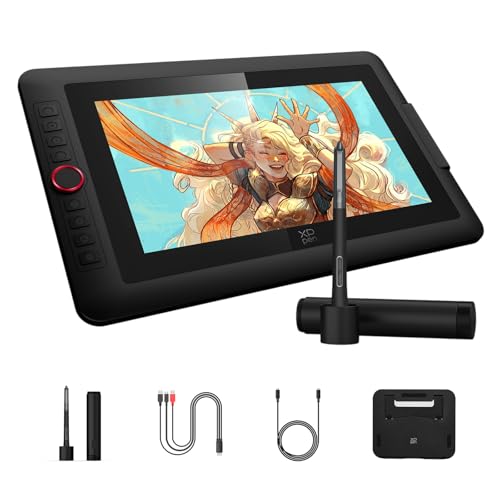
- Red dial and eight shortcut keys for fast tool changes
- Pen with 16,384 pressure levels and tilt support
- Fully laminated display with broad color coverage
- Heavier than the other 13.3-inch pick here
The XP-PEN Artist 13.3 Pro V2 is the shortcut-focused 13.3-inch pick, for illustrators and animators who switch tools constantly. Its 13.3-inch fully laminated display shows 1920 by 1080 pixels, and XP-Pen lists 99 percent sRGB, 89 percent Adobe RGB, and 95 percent P3 coverage, with 16.7 million display colors — confirm the colour figures on the listing, since listing reads vary. The X3 Pro stylus reports 16,384 pressure levels and tilt support up to 60 degrees. It has a red dial and eight customizable shortcut keys, a foldable stand included, and full-featured USB-C plus a 3-in-1 cable included, according to its listing.
Pros
Cons
View the XP-PEN Artist 13.3 Pro V2 on Amazon
Wacom Cintiq 16
- Large 15.6-inch display with a roomy active area
- Wacom Pro Pen 2 with 8,192 pressure levels and tilt recognition
- Integrated foldable legs for a comfortable desk angle
- Narrower color coverage than the other picks here
The Wacom Cintiq 16 is the established large-screen pick, for artists who already use Wacom pens and want a roomy desk display. Its 15.6-inch Full HD display shows 1920 by 1080 pixels, with an active area of 13.6 by 7.6 inches. The Wacom Pro Pen 2 reports 8,192 pressure levels with tilt recognition and needs no charging. Model code DTK1660K0A, weight about 4.19 pounds, integrated foldable legs to a 19-degree incline, and a 3-in-1 cable with power adapter. Wacom lists 72 percent NTSC color coverage, narrower than the other picks here, so it suits line work more than color-critical print work.
Pros
Cons
View the Wacom Cintiq 16 on Amazon
HUION Kamvas 16 (2021)
- Large 15.6-inch fully laminated display with anti-glare glass
- Ten programmable express keys and an adjustable stand included
- Lighter than the other 15.6-inch pick here, with two connection options
- Large footprint needs a stable desk and room for cables
The HUION Kamvas 16 (2021) is the large-screen pick for broad strokes, ten shortcut keys, and a stand in the box. Its 15.6-inch fully laminated display shows 1920 by 1080 pixels, with anti-glare glass, and Huion lists 120 percent sRGB volume for color. The battery-free PW517 pen reports 8,192 pressure levels with tilt support up to 60 degrees. Model code GS1562, weight about 2.78 pounds, ten programmable express keys, adjustable stand included, USB-C or 3-in-1 cable, and Windows, macOS, Linux, and select Android support. It needs a computer to work.
Pros
Cons
View the HUION Kamvas 16 (2021) on Amazon
Who Should Choose What
If you are buying your first pen display and want the simplest setup, start with the Wacom One 12. Its small display, etched surface, and USB-C connection keep the learning curve gentle. If color accuracy matters for your finished work, choose the HUION Kamvas 13 (Gen 3), with its laminated display, broad color coverage, and high-resolution pen. If you switch tools constantly, choose the XP-PEN Artist 13.3 Pro V2, because the red dial and eight keys suit animation, comics, and graphic design.
If you already own a Wacom pen display and want a larger screen without changing pen habits, choose the Wacom Cintiq 16, because the Pro Pen 2 and Wacom driver will feel familiar. If you draw with broad arm movements or want ten shortcut keys and a stand in the box, choose the HUION Kamvas 16 (2021).
Common Mistakes
The most common mistake is buying a pen display and expecting it to work on its own. Every pick here needs a computer or a compatible device, plus a driver installed before pen pressure and tilt will work in your drawing software. Install the driver for your exact model, connect the display, then enable pen pressure in the brush settings. If the pen moves the cursor but pressure does not work, check both the driver and the app settings before assuming the pen is faulty, and avoid installing drivers from several tablet brands at once, because conflicting drivers can cause cursor jumps and missing pressure.
A second mistake is choosing by pressure levels alone. A pen with 16,384 levels will not transform a sketch if the brush is not configured for pressure, and a pen with 4,096 levels already covers most sketching and inking. A third mistake is ignoring the connection: a full-featured USB-C port that carries video is not the same as a standard USB-C port that only carries data, and a computer without video support will need a 3-in-1 cable or an adapter. A fourth mistake is skipping the stand and angle, because drawing flat for hours strains the wrist. A fifth mistake is assuming every bundle includes the same pen, stand, cables, and software, so confirm on the listing what is included with the exact configuration you choose.
FAQ
Do drawing tablets with a screen work without a computer?
No, the five pen displays in this guide need a computer or a compatible device to work, unless the listing states otherwise for a specific configuration. They are displays and pen inputs for a computer, not standalone tablets, so you need a Windows or Mac computer, or a compatible Android or Chromebook device where the listing states support, plus the manufacturer driver for your exact model.
Is a bigger display always better for drawing?
No, a bigger display gives your hand more room and suits broad strokes and large canvases, but it also needs more desk space, a stand, and cables, and it is heavier to move. A 13.3-inch display is the middle ground for most artists, while an 11.6-inch display suits small desks and travel, and a 15.6-inch display suits a fixed desk and long sessions.
How many pressure levels do I need?
A pen with 4,096 levels covers sketching, inking, and shading for most beginners and hobbyists. A pen with 8,192 levels gives finer control at the light end of a stroke, and a pen with 16,384 levels adds more headroom for very light touches. Pressure matters most when your software brush is configured to respond to it, so enable pressure in your brush settings before you judge a pen by its pressure number alone.
Does tilt support matter for drawing?
Yes, tilt support matters when you shade with the side of a virtual brush, use a calligraphy pen, or want a pencil-like feel. A pen that senses angle can widen strokes as you lean it, which mimics a real pencil. All five picks in this guide list tilt support, so confirm on the listing that your software brush has tilt enabled for the effect you want.
Can left-handed artists use these pen displays?
Yes, most pen displays in this guide can be used left-handed, because the pen works from either side and the driver lets you flip the display orientation and remap the shortcut keys. If the tablet has keys along one edge, check the driver settings for orientation and key mapping, and confirm on the listing whether the model supports a flipped layout.
What should I check on the listing before I buy?
Check the exact model code, the display size and resolution, the pen model and pressure levels, the color coverage, the included cables and stand, and the supported operating systems and connection type. Confirm whether the configuration you choose includes the pen, the stand, and the cables you need, and confirm that your computer has the video output and USB-C support the model requires.
Conclusion
The best drawing tablets with screen are the pen displays that match your desk, your hand, and your finished work, rather than the ones with the longest feature list. The Wacom One 12 is the compact starting point, the HUION Kamvas 13 (Gen 3) is the color-focused 13.3-inch pick, the XP-PEN Artist 13.3 Pro V2 is the shortcut-focused 13.3-inch pick, the Wacom Cintiq 16 is the large-screen pick for established Wacom users, and the HUION Kamvas 16 (2021) is the large-screen pick for broad strokes and a fixed shortcut workflow.
Start with display size, then check the pen, color coverage, controls, and connection for the model that fits that size. Install the driver before you draw, map the display to the monitor you use, enable pressure and tilt in your software, and give yourself a few sessions to adjust to drawing on a screen. A pen display that fits your desk and your workflow will feel natural quickly, and it will stay useful as your drawing grows from sketches to finished illustration, animation, and design work.
FAQ
Do drawing tablets with a screen work without a computer?
Is a bigger display always better for drawing?
How many pressure levels do I need?
Does tilt support matter for drawing?
Can left-handed artists use these pen displays?
What should I check on the listing before I buy?
More from Amazon
Programs that pair well with the guide above. Offers and eligibility are set by Amazon and may change.
Free shipping on eligible items, Prime Video and more. Eligible new members can start with a free trial.
Start a Prime free trialA Prime membership for ages 18-24 with a trial period. Eligibility is set by Amazon.
See Prime for Young AdultsAudiobooks and podcasts to listen to on the go. Eligible new members can start with a free trial.
Try Audible freeAd-free music streaming. Eligible new subscribers can start with a free trial.
Try Music Unlimited freeAs an Amazon Associate we earn from qualifying purchases.