Our Short List of 3
All 5 Picks at a Glance
| Product | Specs | Action |
|---|---|---|
 1. Samsung ViewFinity S8 S80HF 5K Monitor | Check price on Amazon | |
 2. Dell UltraSharp U2723QE 4K USB-C Hub Monitor | Check price on Amazon | |
 3. ASUS ProArt Display PA279CRV | Check price on Amazon | |
 4. LG UltraFine 27UP850K-W 4K Monitor | Check price on Amazon | |
 5. Dell S2722QC 4K USB-C Monitor | Check price on Amazon |
Key takeaways
- Compare the best monitors for MacBook Air, with 5K and 4K USB-C displays, Retina-matching sharpness, and color accuracy for macOS.
A MacBook Air is easy to love on the move and easy to outgrow at a desk. The built-in display is sharp and color accurate, but a 13-inch or 15-inch screen leaves little room for a document beside a browser or a spreadsheet beside a chat window. An external monitor fixes that without changing anything about the laptop: close the lid or leave it open as a second screen, connect one cable, and the same machine drives a large desktop workspace.
The right monitor for a MacBook Air is not the same as for a gaming desktop. The Air connects over USB-C, charges over that same cable, and runs macOS, which scales text in a particular way. A monitor that matches those traits gives a crisp image, charges the laptop while it works, and keeps colors consistent between screens. One that ignores them can still light up, but text may look soft.
All five monitors in this guide connect to a MacBook Air over a single USB-C cable that carries video and charging, and all use high-resolution panels suited to macOS. Two are 5K displays that match Retina pixel density. Three are 4K displays with the same single-cable convenience. Every pick is a monitor only.
Disclosure: As an Amazon Associate, we earn from qualifying purchases.
How a MacBook Air Connects to an External Monitor
A MacBook Air connects to an external display through its USB-C ports, which also serve as Thunderbolt ports on Apple silicon models. The connection uses DisplayPort Alt Mode, which carries video over a USB-C cable, and the same cable can deliver power back to the laptop, so the Air charges while it drives the display. That single-cable arrangement is the defining feature of every monitor in this guide.
Power delivery decides whether the desk stays clean. A monitor that delivers 65 watts or more over USB-C covers a MacBook Air with room to spare, since the Air ships with a compact charger in the 30-watt to 35-watt class. Monitors in this guide deliver between 65 and 96 watts, so any of them can keep an Air charged through a full workday. Higher wattage does not charge an Air faster beyond what the laptop accepts.
External display support depends on the Apple silicon chip in the MacBook Air. The M1 and M2 models support one external display at up to 6K resolution. The M3 model supports one external display with the lid open, or two with the lid closed. The M4 model supports two external displays. Before buying a second monitor, check which chip the Air has, because the limit is set by the laptop.
A monitor with a built-in USB hub extends the single-cable idea to the rest of the desk. Keyboard, mouse, webcam, and external storage plug into the monitor, and the one USB-C cable carries their data to the laptop. Some monitors in this guide also include a KVM switch, which lets one keyboard and mouse control two computers on the same screen, and an Ethernet port for a wired network connection. Those hub features turn the monitor into a docking station.
What to Look For in a Monitor for MacBook Air
Resolution and pixel density decide how sharp text looks, and macOS makes this more important than on other systems. The MacBook Air uses a Retina display, where the screen packs enough pixels that individual dots disappear at normal viewing distance. A 27-inch 5K display reaches 218 pixels per inch, the same density as the built-in Retina panel, and macOS renders it at an exact two-to-one scale, so text looks identical to the laptop screen, only larger. A 27-inch 4K display reaches 163 pixels per inch, which is still sharp, but macOS scales the image rather than rendering it at an exact multiple, so text is slightly softer.
Size is the second decision. A 27-inch display is the standard choice: large enough for two windows side by side, small enough for a normal desk, and available in both 4K and 5K. A 32-inch 4K display shows the same pixels over a larger area, so text appears bigger but less dense. A 24-inch 4K display is denser still, but barely larger than the laptop itself.
Color accuracy matters because the MacBook Air already covers the P3 wide color gamut, and a monitor with a narrow gamut will look washed out beside it. Look for a monitor that lists P3 or Adobe RGB coverage and a Delta E value under 2, which means the average color error is small enough to be hard to notice. For photo and video work, a monitor that covers nearly all of DCI-P3 and nearly all of Adobe RGB handles both screen and print color work; for office work and browsing, full sRGB coverage is enough.
USB-C power delivery should be at least 65 watts for a MacBook Air, and every monitor in this guide meets that bar. Also check the cable in the box: some monitors include a USB-C cable rated for video and charging, while others expect the buyer to supply a full-featured USB-C cable. A cable that carries video, data, and charging is required for the single-cable setup.
The stand and mounting options decide comfort over a long day. Height adjustment, tilt, swivel, and pivot let the screen sit at eye level and turn to portrait orientation for documents and code. A VESA mount pattern on the back allows an arm or wall mount for desks where the included stand takes too much room. Built-in speakers are a convenience rather than a deciding feature, since the MacBook Air has capable speakers of its own.
Best Monitors for MacBook Air
1. Samsung ViewFinity S8 S80HF 5K Monitor
The Samsung ViewFinity S8 S80HF is the only 5K monitor in this guide, and the closest match to the MacBook Air’s own screen. Its 27-inch panel runs at 5120 by 2880, or 218 pixels per inch, the same density as a Retina display. macOS scales it at an exact two-to-one ratio, so text looks identical to the laptop screen, only larger. For anyone who reads and writes all day, that exact scaling is the biggest visible difference from a 4K panel.
One USB-C cable carries video and up to 90 watts of charging, which covers a MacBook Air with ample headroom. HDMI 2.1 and DisplayPort 1.4 inputs cover a second computer, and a built-in KVM switch shares one keyboard and mouse between two machines. A wired network port gives the desk a stable connection, and the stand adjusts in height, tilts, swivels, and pivots to portrait orientation. Color coverage reaches 99 percent of sRGB, with HDR10 support, and the matte finish cuts reflections in bright rooms. The panel runs at 60 Hz. This is the pick for an owner who wants the Retina look on a large screen and a full docking hub in one display.
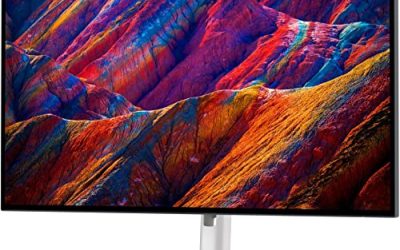
2. Dell UltraSharp U2723QE 4K USB-C Hub Monitor
The Dell UltraSharp U2723QE is the hub monitor in this guide. Its 27-inch 4K panel uses IPS Black technology, which roughly doubles the contrast of a standard IPS panel, so text stays crisp and shadows hold more depth. The panel covers the full sRGB color space and 98 percent of DCI-P3, with a Delta E under 2, and it carries DisplayHDR 400 certification. Brightness reaches 400 nits, keeping the screen readable in a bright office.
The port selection is the most complete here. A USB-C upstream port carries video and up to 90 watts of charging to the laptop, while a second USB-C port, five USB-A ports, DisplayPort in and out, HDMI, and a wired network port fill out the hub. DisplayPort output supports daisy-chaining a second 4K display, and a built-in KVM switch shares peripherals between two computers. The stand adjusts in height, tilt, swivel, and pivot, and the monitor mounts on a VESA arm. The panel runs at 60 Hz with a 5-millisecond response, which suits office work, photo editing, and video playback. This is the pick for a desk that also hosts a second computer, a wired network connection, and several peripherals.
3. ASUS ProArt Display PA279CRV
The ASUS ProArt Display PA279CRV is the color-first monitor in this guide. Its 27-inch 4K IPS panel covers 99 percent of DCI-P3 and 99 percent of Adobe RGB, so it handles both video color work and print color work on the same screen. Each unit is Calman Verified, with factory calibration keeping the average color error under a Delta E of 2, and a calibration report is included in the box. Brightness reaches 400 nits with DisplayHDR 400 certification, and the panel runs at 60 Hz with a 5-millisecond response.
USB-C delivers 96 watts of power, the highest charging capacity in this guide, which covers a MacBook Air easily and leaves headroom for a larger laptop. DisplayPort input and output support daisy-chaining a second monitor, and HDMI covers a second source. Built-in speakers handle video calls and media when the laptop lid is closed, and the ergonomic stand adjusts in height, tilt, swivel, and pivot. This is the pick for photo editing, video editing, and design work, where accurate color matters more than extra ports.
4. LG UltraFine 27UP850K-W 4K Monitor
The LG UltraFine 27UP850K-W is the straightforward 4K choice in this guide. Its 27-inch IPS panel runs at 3840 by 2160 with DisplayHDR 400 certification and covers 95 percent of DCI-P3, which keeps colors vivid beside the MacBook Air’s P3 display. The panel runs at 60 Hz with a 5-millisecond response, and built-in speakers handle calls and media.
The USB-C port carries video and up to 90 watts of charging, so a MacBook Air connects and charges over one cable. HDMI and DisplayPort inputs cover a second device, and the stand adjusts in height, tilts, and pivots to portrait orientation for long documents. The white finish suits a light-colored desk, and the monitor is simpler than the hub monitors here, with fewer ports and no network connection. This is the pick for an owner who wants a sharp 4K screen, single-cable charging, and accurate color, without a full docking hub or professional calibration.
5. Dell S2722QC 4K USB-C Monitor
The Dell S2722QC is the entry point of this guide. Its 27-inch 4K IPS panel runs at 3840 by 2160 resolution with 99 percent sRGB coverage and support for 1.07 billion colors, which keeps text sharp and photos true for everyday work. The panel runs at 60 Hz with an 8-millisecond response, and AMD FreeSync smooths video playback. ComfortView Plus reduces blue light without shifting colors toward yellow.
The USB-C port carries video and up to 65 watts of charging, which covers a MacBook Air, and two HDMI ports cover additional sources. Built-in dual speakers handle video calls and media, and the stand adjusts in height, tilt, swivel, and pivot. This is the pick for a first external monitor, or for a second desk where the hub features of the larger monitors are not needed. It delivers the core of the experience, a sharp 4K screen with single-cable charging, in the simplest package here.
Which Monitor Fits Which Need
The five monitors split along two lines: resolution and hub depth. The Samsung ViewFinity S8 S80HF is the only 5K display, and it is the pick for anyone who wants the MacBook Air’s Retina sharpness on a large screen, with exact two-to-one scaling and the densest text in this guide. The other four are 4K displays at 163 pixels per inch, sharp for everyday work but slightly softer than the 5K panel.
Hub depth is the second divider. The Dell U2723QE is the full docking station, with a wired network port, five USB-A ports, DisplayPort daisy-chaining, and a KVM switch. The Samsung S8 S80HF and the ASUS PA279CRV sit in the middle, with a KVM switch and daisy-chain support. The LG 27UP850K-W and the Dell S2722QC are simpler: one USB-C connection, plus HDMI and DisplayPort, and no network port.
Color work is the third divider. The ASUS PA279CRV leads on color, with 99 percent coverage of both DCI-P3 and Adobe RGB and factory calibration. The Dell U2723QE follows with 98 percent DCI-P3 and IPS Black contrast. The LG 27UP850K-W covers 95 percent of DCI-P3, and the Samsung S8 S80HF and Dell S2722QC cover 99 percent of sRGB. For office work, any of the five is accurate enough; for photo and video work, the ASUS and Dell UltraSharp panels are stronger. Charging capacity runs from 65 watts on the Dell S2722QC to 96 watts on the ASUS PA279CRV, with the other three at 90 watts. All five cover a MacBook Air, so charging capacity should not decide the purchase for an Air owner.
Setting Up Your MacBook Air With an External Monitor
Setup takes a few minutes. Connect the included USB-C cable from the monitor’s USB-C upstream port to either USB-C port on the MacBook Air. The monitor should appear automatically; if it does not, open System Settings, choose Displays, and check it is detected. Arrange the displays by dragging the screen icons so the external monitor sits where it physically sits.
Display scaling is set per display in the same Displays settings panel. On a 27-inch 5K monitor, the default scaled resolution gives the same apparent text size as the laptop screen with far more room. On a 27-inch 4K monitor, the middle scaled options keep text readable while preserving desk space. Try two or three settings for a day each before settling.
Clamshell mode runs the MacBook Air with its lid closed, using only the external display. Connect the monitor, attach an external keyboard and mouse, then close the lid; the external display becomes the only screen. This works with any monitor in this guide, since the USB-C cable charges the laptop while it runs. Keep the laptop on a stand with ventilation.
Common Questions
Does a MacBook Air need a Thunderbolt monitor?
No. A MacBook Air works with any monitor that accepts video over USB-C using DisplayPort Alt Mode, which includes every monitor in this guide. Thunderbolt adds faster data transfer, but it is not required for a single external display.
Is 4K or 5K better for a MacBook Air?
A 27-inch 5K monitor matches the Retina density of the MacBook Air screen at 218 pixels per inch and scales at an exact two-to-one ratio, so text looks the same as on the laptop, only larger. A 27-inch 4K monitor is still sharp at 163 pixels per inch, and it costs less for the same screen size. Choose 5K for the closest match to the laptop display; choose 4K when the budget matters more than the last step of sharpness.
How many external monitors can a MacBook Air use?
It depends on the chip. M1 and M2 models support one external display at up to 6K resolution. The M3 model supports one external display with the lid open, or two with the lid closed. The M4 model supports two external displays. The limit comes from the laptop, so check the chip first.
Will one USB-C cable really charge the MacBook Air?
Yes, when the monitor delivers enough power. Every monitor in this guide delivers at least 65 watts over USB-C, and a MacBook Air ships with a compact charger in the 30-watt to 35-watt class. Use the supplied cable or a full-featured USB-C cable rated for video, data, and charging; a charge-only cable will not carry a picture.
Do I need a monitor with built-in speakers or a webcam?
It depends on how the desk is used. The MacBook Air has capable speakers and a webcam of its own, so a monitor without them works fine with the lid open. With the lid closed in clamshell mode, the laptop speakers and camera are covered, so built-in monitor speakers and an external webcam become useful. The Samsung, ASUS, LG, and Dell S2722QC models in this guide include speakers; none of the five includes a built-in webcam, so add one separately for video calls in clamshell mode.
Can I use a monitor that is not made for Mac?
Yes. Monitors are not made for one operating system; they accept standard video signals over USB-C, HDMI, and DisplayPort. A monitor marketed for Windows works with a MacBook Air over the same cables. What matters is the panel, the charging capacity, and the color coverage, not the branding on the box.
Final Thoughts
The best monitor for a MacBook Air is the one that matches how the laptop is used at a desk. A 5K display is the closest match to the Retina screen, with the sharpest text and the most faithful scaling. A 4K display with a full hub replaces a docking station and keeps every peripheral on one cable. A color-accurate display keeps photo and video work consistent between the laptop and the large screen.
Start with resolution and size, then check charging capacity and ports. A 27-inch screen is the standard choice, 5K is the sharpest option, and 90 watts or more of charging leaves room for any laptop that shares the desk later. Any of the five monitors in this guide turns a MacBook Air into a full desktop machine with one cable.
More from Amazon
Programs that pair well with the guide above. Offers and eligibility are set by Amazon and may change.
Free shipping on eligible items, Prime Video and more. Eligible new members can start with a free trial.
Start a Prime free trialA Prime membership for ages 18-24 with a trial period. Eligibility is set by Amazon.
See Prime for Young AdultsAudiobooks and podcasts to listen to on the go. Eligible new members can start with a free trial.
Try Audible freeAd-free music streaming. Eligible new subscribers can start with a free trial.
Try Music Unlimited freeAs an Amazon Associate we earn from qualifying purchases.