Our Short List of 3
All 4 Picks at a Glance
| Product | Specs | Action |
|---|---|---|
 1. ASUS VA27EHF 27-Inch Full HD IPS Monitor | Check price on Amazon | |
 2. Dell S2421HS 24-Inch Full HD IPS Monitor | Check price on Amazon | |
 3. BenQ GW2790QT 27-Inch QHD USB-C Monitor | Check price on Amazon | |
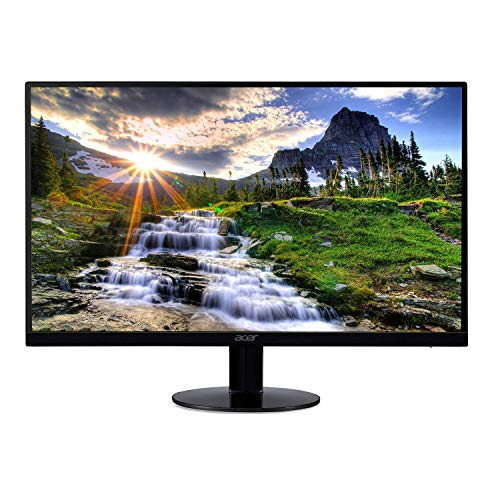 5. Acer SB220Q 21.5-Inch Full HD IPS Monitor | Check price on Amazon |
Key takeaways
- Find the best monitors for a triple setup: thin-bezel, VESA-ready screens in 24-inch, 27-inch, and 4K options for work, coding, and gaming.
Three monitors change a desk the way a second monitor never quite does. One screen holds the main task, the second holds the reference material, and the third holds the inbox, the chat window, or the video call, and the constant shuffling between windows disappears entirely. A triple setup suits programmers who keep code, documentation, and a terminal open at once, traders who watch several charts side by side, video editors who spread a timeline across screens, and gamers who want a wide field of view that wraps around them.
The rule that makes or breaks a triple setup is simple: buy three identical monitors. Three screens of the same model share the same size, resolution, brightness, color tuning, bezel width, and stand height, so the desk reads as one wide workspace instead of three unrelated boxes. Mixing models leaves one screen warmer than the others, one bezel thicker than the rest, and one stand sitting a little higher, and those differences are visible all day because the screens sit directly next to each other. Every pick in this guide is a single monitor sold on its own, chosen because it works well bought three times over: thin bezels, VESA mounting, matching color, and a sensible size for a three-screen desk.
Disclosure: As an Amazon Associate, we earn from qualifying purchases.
Why Three Identical Monitors Beat a Mixed Set
Color consistency is the first reason to buy three of the same model. Identical panels leave the factory with the same backlight and the same color calibration, so a document, a photo, or a web page looks the same on the left screen, the center screen, and the right screen. When the panels differ, moving a window from one screen to another changes how it looks, and that shift is distracting during long work sessions. For photo editing, design work, and spreadsheets, matching color matters more than any single specification on the box.
Bezels are the second reason. A triple setup has two seams instead of one, and the seam is where the eye lands every time it moves between screens. Thin, matching bezels keep both seams even and narrow, so the three screens feel like one continuous surface. A thick bezel on one monitor and a thin bezel on another makes one seam stand out, and the uneven line pulls attention away from the work. All five monitors in this guide have slim bezels on three sides, which is the feature to look for when a monitor will sit beside two copies of itself.
Stands and mounting are the third reason. Three identical stands put all three screens at the same height without shims, books, or adjustments, and a triple monitor arm fits all three screens the same way because the VESA pattern and the weight match. Mixed stands mean three different heights and three different adjustment mechanisms, and the desk ends up looking tilted even when each screen is level on its own. Every pick below supports VESA mounting, so a triple arm is an easy upgrade when the included stands take too much desk space.
What to Look For in Monitors for a Triple Setup
Size sets the footprint of the whole desk, so measure before choosing. Three 24-inch monitors side by side need roughly 66 inches of width with their stands, three 27-inch monitors need about 73 inches, and three 32-inch monitors need closer to 84 inches. A 24-inch triple fits a standard desk with room left for a notebook. A 27-inch triple is the comfortable middle ground for most home offices and the most common choice for a three-screen desk. Larger triples suit a dedicated workspace with a deep, wide desk, and they pair well with a monitor arm that lifts the screens off the surface.
Resolution should match the size and stay the same across all three screens. Full HD at 1920 by 1080 looks sharp on a 24-inch screen and stays acceptable on a 27-inch screen for general work and gaming. Quad HD at 2560 by 1440 is the better match for a 27-inch triple, because it adds noticeably sharper text and more room for side-by-side windows. A 27-inch triple at 4K gives the sharpest text of all and suits detailed work, though it asks more of the graphics card. Whatever resolution you choose, all three screens should run at the same one, so windows keep their size when they move across the desk.
Ports and graphics outputs decide whether the setup works at all. A triple setup needs three video outputs from the computer, so count them before buying. Most desktop graphics cards carry three or more outputs across HDMI and DisplayPort, while laptops often need a docking station or a USB-C hub to drive three external screens. Check that each monitor has at least one HDMI input and one DisplayPort input, and that the computer has a matching output for each screen. A monitor with a USB-C input can simplify a laptop triple setup, because one cable can carry video and power for the screen it connects to.
Panel type shapes color and viewing angles. An IPS panel keeps colors accurate and holds its image quality when viewed from the side, which matters in a triple setup because the outer screens angle toward you and are always viewed slightly off-center. A VA panel gives deeper contrast, which makes dark scenes in games and movies look richer, though its colors shift more at an angle. For work-focused triples, IPS is the safer choice. For a gaming triple, either panel works, and the refresh rate matters more than the panel type.
Refresh rate decides how smooth motion looks across all three screens. A 60Hz or 75Hz triple refreshes fast enough for documents, video, spreadsheets, and casual games, and it is the standard for office-focused setups. A 100Hz triple adds a visible step up in smoothness when scrolling long pages or moving windows, and it suits mixed work and play. A high-refresh triple is built for fast-paced gaming, where the screens redraw fast enough to keep up with quick camera movement, though it needs a graphics card that can deliver the frames to three screens at once.
Best Monitors for Triple Setup
1. ASUS VA27EHF 27-Inch Full HD IPS Monitor
The ASUS VA27EHF is the most straightforward pick for a triple setup, and the one to choose when three matching screens should simply work. Its 27-inch Full HD IPS panel runs at 1920 by 1080 with a 100Hz refresh rate, which keeps scrolling and window movement smooth across all three screens without asking much of the graphics card. The frameless design leaves slim bezels on three sides, so the two seams in a triple setup stay narrow and even, and the IPS panel keeps colors steady when the outer screens angle toward you.
Eye comfort features suit long days in front of three screens. A blue light filter and flicker-free backlighting reduce strain during extended work sessions, and the anti-glare surface keeps reflections down under office lighting. The monitor carries HDMI and DisplayPort inputs, which covers the common connections from a desktop graphics card, and the VESA mount pattern on the back fits a triple monitor arm when the included stands take too much desk space. This is the pick for a home office or study desk where three large, matching screens should feel calm and consistent rather than flashy.
2. Dell S2421HS 24-Inch Full HD IPS Monitor
The Dell S2421HS is the compact pick in this guide, built for desks where three 27-inch screens would not fit. Each screen is a 24-inch Full HD IPS panel at 1920 by 1080 with a 75Hz refresh rate, and the three-sided ultrathin bezel design keeps the seams between screens narrow. The smaller size keeps text sharp at Full HD, because the pixels are packed more tightly than on a larger screen at the same resolution, and three 24-inch screens fit on a standard desk with room left for a keyboard, a notebook, and a coffee mug.
The stand adjusts for height, tilt, swivel, and pivot, so all three screens can sit at exactly the same eye level and angle, and the VESA mount pattern allows a triple arm later. HDMI and DisplayPort inputs connect to a desktop graphics card, and the IPS panel holds color and contrast steady from wide angles, which matters when the outer screens sit at an angle. This is the pick for a smaller desk, a shared workspace, or a first triple setup where the priority is fitting three matching screens comfortably rather than maximizing size.
3. BenQ GW2790QT 27-Inch QHD USB-C Monitor
The BenQ GW2790QT is the productivity pick in this guide, and the one to choose when the triple setup centers on a laptop. Its 27-inch QHD IPS panel runs at 2560 by 1440 with a 75Hz refresh rate, which gives noticeably sharper text and more room for side-by-side windows than a Full HD triple. The USB-C input carries video, data, and power over one cable, so a laptop connects to its screen with a single lead, and the built-in USB hub keeps a keyboard and mouse connected through the monitor.
Eye care features are the strength of this monitor. A blue light filter, flicker-free backlighting, and a brightness sensor that adjusts the screen to the room lighting suit long days of documents, code, and email. Built-in speakers sit in the monitor, so video calls play without extra hardware, and the height-adjustable stand with tilt, swivel, and pivot lets all three screens line up precisely. HDMI and DisplayPort inputs cover desktop connections as well, and VESA mounting support fits a triple arm. This is the pick for a work-from-home desk where three sharp, comfortable screens should run quietly all day.
4. Samsung ViewFinity S8 S80D 27-Inch 4K Monitor
The Samsung ViewFinity S8 S80D is the sharpest pick in this guide, built for detailed work across three screens. Its 27-inch IPS panel delivers 4K resolution at 3840 by 2160, which keeps text crisp and fine detail clear, and it suits photo editing, design work, spreadsheets with many columns, and code with small fonts. HDR10 support adds depth to video and photos, and the matte finish keeps glare under control in a bright room.
The slim-bezel design keeps the two seams in a triple setup narrow, and the height-adjustable stand with tilt, swivel, and pivot lines all three screens up at the same height. HDMI and DisplayPort inputs connect to a desktop graphics card, and the 60Hz refresh rate fits office work, video calls, streaming, and light photo editing without fuss. A 4K triple asks more of the graphics card than a Full HD or QHD triple, so it suits a desktop with a capable card rather than an older laptop. This is the pick for a dedicated workspace where the sharpest possible text across three screens is the priority.
ASIN: B0D4ZK2JDX
5. Acer SB220Q 21.5-Inch Full HD IPS Monitor
The Acer SB220Q is the smallest and lightest pick in this guide, built for tight desks and tight budgets where three screens still need to fit. Its 21.5-inch Full HD IPS panel runs at 1920 by 1080 with a 75Hz refresh rate, and the zero-frame design leaves slim bezels that keep the seams between screens narrow. At this size, Full HD text stays sharp, and three screens side by side need only about 60 inches of width, which fits desks that cannot hold a 27-inch triple.
The IPS panel holds color steady from wide angles, which matters when the outer screens angle toward you, and the monitor carries HDMI and VGA inputs for desktop connections. The VESA mount pattern on the back fits a triple monitor arm, which is the best way to mount three small screens, because the included stands take up desk space that a compact setup cannot spare. This is the pick for a small desk, a dorm room, a first triple setup on a modest budget, or a secondary workstation where three matching screens matter more than large screens.
How to Arrange Three Monitors on a Desk
The standard arrangement puts the main screen in the center and the two outer screens angled inward, so all three face you at a similar distance. The center screen holds the main task, the left screen holds reference material, and the right screen holds communication, or the other way around for left-handed workflows. Angling the outer screens inward by roughly 20 to 30 degrees keeps their far edges readable without turning your head, and it makes the seams feel less abrupt.
A triple monitor arm is the single best upgrade for a three-screen desk. It lifts all three screens off the surface, frees the desk underneath, and holds the screens at exactly the same height with even gaps between them. Measure the desk depth before choosing an arm, because the screens sit further back on an arm than on their stands, and a shallow desk can leave the screens too close to your eyes. If the desk is too shallow for a triple arm, wall mounting or the included stands are the fallback.
Cable management matters more with three screens than with one. Three power cables and three video cables tangle quickly, so route them together behind the desk with ties or a cable tray, and label each video cable with the screen it feeds. That labeling pays off the first time a screen goes dark and you need to find which cable to check. Keep the power cables on one side of the desk and the video cables on the other where possible, so a bump to one bundle does not disturb the other.
Do You Need Three Identical Monitors?
Three identical monitors are the safest choice, and the one this guide recommends, because they guarantee matching color, bezels, stands, and resolution. A mixed triple can work when the screens share the same size and resolution, but the differences in color tuning and bezel width become obvious the moment the screens sit side by side, and there is no setting that fully hides them. If the budget only stretches to two matching screens and one different one, put the different screen on the outside edge, where the mismatch is least noticeable, and keep the two matching screens in the center and on the other side.
An ultrawide monitor is the main alternative to a triple setup. One wide screen replaces three screens with no seams at all, and it needs only one video output and one power cable. The trade is flexibility: three separate screens let you full-screen a different application on each one, while an ultrawide needs window management software to divide its space. A triple setup also survives a single screen failing, because two screens keep working, while an ultrawide going dark leaves no screen at all. Choose the triple when separate full-screen windows matter, and the ultrawide when a seamless single surface matters more.
Frequently Asked Questions
How wide should a desk be for three monitors?
Three 24-inch monitors need roughly 66 inches of width, three 27-inch monitors need about 73 inches, and three 21.5-inch monitors need about 60 inches. Measure the desk and leave a few inches of margin on each side, because the screens should not hang over the edge. A monitor arm reduces the footprint, since the stands no longer sit on the desk surface.
Can a laptop drive three external monitors?
It depends on the laptop. Most desktop graphics cards carry three or more video outputs, while laptops often need a docking station or a USB-C hub to drive three external screens. Check the laptop manual for how many external displays it supports, and confirm that the dock or hub supports three outputs at the resolution you want. A monitor with a USB-C input can simplify the connection, because one cable carries video and power.
Should all three monitors be the same resolution?
Yes. Running all three screens at the same resolution keeps windows the same size when they move across the desk, and it keeps text equally sharp on every screen. Mixing resolutions means a window changes size as it crosses from one screen to another, which is distracting and makes the setup feel unfinished.
What refresh rate do I need for three monitors?
A 60Hz or 75Hz triple suits documents, video, spreadsheets, and casual games. A 100Hz triple adds smoother scrolling and window movement for mixed work and play. A high-refresh triple suits fast-paced gaming, though it needs a graphics card that can deliver the frames to three screens at once, which is a heavier demand than a single high-refresh screen.
The Short Version
A triple setup works best with three identical monitors: same size, same resolution, same bezels, same stands. The ASUS VA27EHF is the straightforward 27-inch choice, the Dell S2421HS fits smaller desks, the BenQ GW2790QT adds QHD sharpness and USB-C for laptop desks, the Samsung ViewFinity S8 S80D brings 4K clarity to detailed work, and the Acer SB220Q fits the tightest desks. Measure the desk, count the video outputs on the computer, and buy three of the same screen. The desk will read as one wide workspace instead of three separate monitors.
FAQ
Do You Need Three Identical Monitors?
How wide should a desk be for three monitors?
Can a laptop drive three external monitors?
Should all three monitors be the same resolution?
What refresh rate do I need for three monitors?
More from Amazon
Programs that pair well with the guide above. Offers and eligibility are set by Amazon and may change.
Free shipping on eligible items, Prime Video and more. Eligible new members can start with a free trial.
Start a Prime free trialA Prime membership for ages 18-24 with a trial period. Eligibility is set by Amazon.
See Prime for Young AdultsAudiobooks and podcasts to listen to on the go. Eligible new members can start with a free trial.
Try Audible freeAd-free music streaming. Eligible new subscribers can start with a free trial.
Try Music Unlimited freeAs an Amazon Associate we earn from qualifying purchases.