Key takeaways
- Our guide to the best cameras for zoom compares 4 webcams with sharp 1080p and 2K video, clear mics, autofocus, and privacy shutters for daily work calls.
A good Zoom camera changes how you come across on a call. A laptop camera shoots from below your chin in dim light, while a dedicated webcam frames your face at eye level with clean color and a steady image. The cameras in this guide are built for video calls: sharp 1080p or 2K video, autofocus that holds you in frame, and microphones that pick up your voice without a headset. A dedicated webcam also keeps your hands free, since you never hold a phone up to your face during a long meeting.

This guide is for remote workers who spend hours on Zoom each day, managers who run team meetings from a home office, and anyone who wants to look and sound professional on calls. Each camera below was picked from the name and specifications shown on its Amazon page, with weight given to video sharpness, microphone quality, and ease of setup.
Quick Picks
As an Amazon Associate we earn from qualifying purchases
| Product | Best for | Key spec from title |
|---|---|---|
| Logitech C920 | Best all-round Zoom camera | 1080p autofocus, 78° FOV |
| Logitech Brio 101 | Simple plug-and-play calls | 1080p with privacy shutter |
| Logitech C922x | Smoother motion on calls | 1080p/30 or 720p/60 |
| Anker PowerConf C200 | Sharper 2K video | 2K with AI noise-canceling mics |
How to Choose
Resolution and Frame Rate
Resolution decides how sharp you look on a call. A 1080p webcam shows your face clearly on any screen, while a 2K camera adds detail that helps on large monitors and recorded meetings. Frame rate matters for motion: 30 frames per second suits normal conversation, while 60 frames per second at 720p makes gestures and head turns look smoother. Zoom compresses video, so a sharper camera still helps, but only up to a point. A 1080p camera with good light correction often looks better on a call than a 2K camera with poor exposure.
Field of View
The field of view sets how much of your room appears on screen. A narrow 60-degree view frames one person tightly, which suits solo calls and keeps a messy room out of frame. A wider 78-degree view fits two people side by side or shows a whiteboard behind you, which suits pair interviews and small team huddles. Adjustable field of view is the most flexible option, since you can tighten the frame for a one-to-one call and widen it for a group. Check the angle before buying, because a fixed wide lens cannot crop out a cluttered background.
Autofocus and Light Correction
Autofocus keeps your face sharp as you lean in and out during a call. A camera with autofocus adjusts continuously, so you stay clear when you reach for a notebook or move closer to read a slide. Fixed-focus cameras stay sharp only at a set distance, which works fine if you sit still at a desk. Light correction matters just as much: it brightens a dim room and tames a bright window behind you. A camera with strong light correction saves you from rearranging lamps before every meeting, which is worth more than a higher resolution on paper.
Microphones and Privacy
Microphones decide whether colleagues hear you clearly or strain through echo and background noise. Dual stereo microphones capture your voice from across a desk, and AI noise canceling filters out keyboard clicks and room hum. A built-in privacy shutter matters too: it blocks the lens when a call ends, so no one sees your desk by accident. Check the connection before buying: a USB-A plug works with most laptops and docks, while a camera that needs a specific app for full settings adds friction. Plug-and-play setup wins for shared desks and hot-desking.
The 4 Best Options
Logitech C920
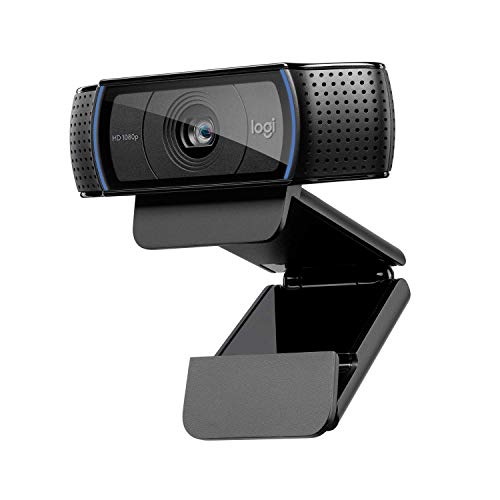
The Logitech C920 is the standard Zoom camera, and it has earned that place with a simple formula: sharp 1080p video, autofocus that holds you in frame, and dual microphones that capture your voice clearly. Its 78-degree field of view fits one person comfortably or two people side by side, the five-element glass lens keeps the image crisp, and H.264 compression keeps the video smooth on a busy connection. A two-year warranty covers long service. For anyone who wants a proven camera that just works, this is the safe pick. The universal clip fits a laptop lid or a desktop monitor, and the tripod thread suits a desk stand.
Specs
- Full HD 1080p video at 30 frames per second
- Autofocus
- Dual stereo microphones
- H.264 video compression
- 5-element glass lens
- 78-degree field of view
- 2-year warranty
Best for: everyday Zoom calls where reliability matters most.
Watch out for: no privacy shutter, so cover the lens when a call ends.
ASIN: B006JH8T3S
Logitech Brio 101
The Logitech Brio 101 is the simplest camera in this guide, built for people who want to plug in and join a call. Its fixed-focus lens stays sharp at desk distance, the 60-degree field of view frames one person tightly, and the built-in microphone captures voice clearly for solo calls. A privacy shutter blocks the lens when you finish, RightLight adjusts for dim rooms, and the USB-A plug works with Zoom, Teams, and Meet without extra software. For a shared desk or a first webcam, this is the easiest pick. The small body travels well in a laptop bag for hybrid workers.
Specs
- Full HD 1080p video at 30 frames per second
- Fixed focus
- 60-degree field of view
- Built-in microphone
- Privacy shutter
- USB-A connection
- RightLight light correction
- Works with Zoom, Teams, and Meet
Best for: simple plug-and-play calls and shared desks.
Watch out for: fixed focus means you need to sit at desk distance to stay sharp.
ASIN: B0BXGFFSL1
Logitech C922x
The Logitech C922x adds smoother motion to the classic C920 formula, and it suits people who gesture and move during calls. It records 1080p at 30 frames per second or 720p at 60 frames per second, so fast head turns and hand movements look fluid instead of choppy. Autofocus holds you sharp as you lean in, dual microphones capture your voice, and HD light correction brightens dim rooms. The 78-degree view fits two people side by side. For presenters and interviewers who move on camera, this is the smoother pick. The camera also records locally for video messages, so one device covers live calls and recorded clips alike.
Specs
- Full HD 1080p video at 30 frames per second
- 720p video at 60 frames per second
- Autofocus
- 78-degree field of view
- Dual stereo microphones
- HD light correction
- USB-A connection
- Works with Zoom, Teams, and Meet
Best for: presenters and interviewers who move a lot on camera.
Watch out for: no privacy shutter, so cover the lens after calls.
ASIN: B01LXCDPPK
Anker PowerConf C200
The Anker PowerConf C200 is the sharpest camera in this guide, recording in 2K for extra detail on large screens and recorded meetings. Its AI noise-canceling microphones filter out keyboard clicks and room hum, low-light correction brightens dim home offices, and the adjustable field of view tightens the frame for one person or widens it for a group. A built-in privacy cover blocks the lens when the call ends, and stereo microphones capture voice from across the desk. For professionals who want the clearest image here, this is the upgrade pick. The wide adjustable view also suits a small team huddle, where one camera must cover two or three people.
Specs
- 2K video resolution
- Low-light correction
- AI noise-canceling microphones
- Stereo microphones
- Adjustable field of view
- Built-in privacy cover
Best for: professionals who want the sharpest video and cleanest audio.
Watch out for: 2K video needs more bandwidth, so a slow connection may force the call back to 1080p.
ASIN: B09MFMTMPD
Which One Fits Your Situation
Daily Work Calls
Take the Logitech C920 for daily work calls. Its autofocus holds you sharp through long meetings, dual microphones capture your voice clearly, and the 78-degree view frames you comfortably. It needs no setup beyond plugging in, which suits a desk you sit at every day. Keep it clipped to the monitor so the angle stays at eye level. The autofocus also holds steady when you lean back to think, so the image never softens mid-sentence.
Interviews and Presentations
Choose the Logitech C922x for interviews and presentations. The 60 frames per second mode at 720p keeps gestures smooth, autofocus tracks you as you lean toward the camera, and HD light correction handles a bright window behind you. It suits anyone who presents to a room full of faces daily. The light correction also tames a bright window behind you, which keeps your face visible on camera.
Shared Desks and Hot-Desking
Pick the Logitech Brio 101 for shared desks. It plugs in over USB-A and works without extra software, the privacy shutter blocks the lens when you walk away, and the tight 60-degree view keeps a busy office out of frame. It is the fastest camera here to set up and put away. The camera also works without admin rights, so a borrowed laptop joins the call without a software install.
Recorded Meetings and Webinars
Start with the Anker PowerConf C200 for recorded meetings and webinars. Its 2K video keeps recordings sharp on large screens, AI noise canceling keeps your voice clear over room noise, and the adjustable field of view frames one speaker or a small panel. The privacy cover blocks the lens between sessions. The 2K recording also stays sharp when the video is cropped for social clips later.
Common Mistakes
- Mounting the camera below eye level, which films up your chin instead of your face.
- Sitting with a bright window behind you and blaming the camera for a dark face.
- Buying a 2K camera for a connection that cannot carry the extra bandwidth.
- Forgetting a privacy shutter and leaving the lens open after every call.
- Choosing a wide field of view for solo calls and showing the whole room behind you.
Frequently Asked Questions
Do I need a separate microphone with a webcam?
Not for most calls. The dual microphones on these cameras capture your voice clearly from a desk, and AI noise canceling filters out keyboard clicks and room hum. A separate microphone helps only when you record a podcast or present to a large audience, where voice quality matters more than on a normal team call.
What is the best position for a webcam?
Clip it to the top of your monitor at eye level, so the camera looks straight at your face instead of up your chin. Sit about an arm’s length away, face a window or a lamp for light, and keep the background tidy. A camera below the screen makes you look down at colleagues, which reads as disinterest on a call.
Is 1080p enough for Zoom calls?
Yes, for nearly everyone. Zoom compresses video on the way to other callers, so a 1080p camera with good light correction looks clear on any screen. A 2K camera adds detail mainly for recorded meetings and large displays. Spend the difference on better lighting first, because a well-lit 1080p image beats a dim 2K one.
Why does my webcam look dark on calls?
The camera exposes for the brightest part of the frame, so a window behind you turns your face into a silhouette. Move the light source in front of you instead, close the blinds behind you, or switch on a lamp facing your face. A camera with light correction helps, but no webcam fixes a backlit room on its own.
FAQ
Do I need a separate microphone with a webcam?
What is the best position for a webcam?
Is 1080p enough for Zoom calls?
Why does my webcam look dark on calls?
More from Amazon
Programs that pair well with the guide above. Offers and eligibility are set by Amazon and may change.
Free shipping on eligible items, Prime Video and more. Eligible new members can start with a free trial.
Start a Prime free trialA Prime membership for ages 18-24 with a trial period. Eligibility is set by Amazon.
See Prime for Young AdultsAudiobooks and podcasts to listen to on the go. Eligible new members can start with a free trial.
Try Audible freeAd-free music streaming. Eligible new subscribers can start with a free trial.
Try Music Unlimited freeAs an Amazon Associate we earn from qualifying purchases.