Our Short List of 3

- Best for: gamers who want the highest refresh rate at 1440p.
- 27-inch QHD display, 2560 x 1440 resolution
- 170Hz refresh rate with overclocking, supports 144Hz
- 1ms MPRT response time
- ELMB motion blur reduction
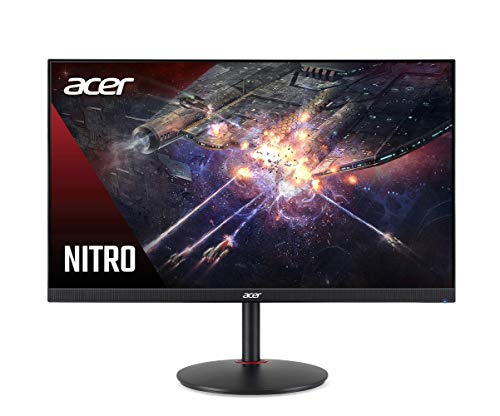
- Best for: players who want brighter HDR and wide color coverage.
- 27-inch WQHD IPS display, 2560 x 1440 resolution
- 144Hz refresh rate
- 1ms VRB response time
- G-SYNC compatible and FreeSync support

- Best for: gamers who also create content and want wide color coverage.
- 27-inch 1440p IPS display
- 144Hz refresh rate
- 1ms response time
- 92% DCI-P3 color gamut
All 3 Picks at a Glance
| Product | Specs | Action |
|---|---|---|
| ASUS TUF Gaming VG27AQA1A |
| Check price on Amazon |
| Acer Nitro XV272U Pbmiiprzx |
| Check price on Amazon |
| Gigabyte G27Q |
| Check price on Amazon |
Key takeaways
- Our guide to the best 144hz gaming monitors compares 4 fast 27-inch QHD displays with 144Hz refresh, 1ms response, and adaptive sync for smooth daily play.
A 144Hz monitor changes how games feel the moment you switch from 60Hz. Motion turns smoother, tracking a moving target gets easier, and fast camera turns stop smearing across the screen. The monitors in this guide all hit 144Hz or higher at 1440p, which is the sweet spot where sharpness and speed meet without demanding a flagship graphics card for everyday use. A faster panel also makes everyday scrolling and window movement feel smoother, so the upgrade shows up outside games too.
This guide is for PC gamers who want smoother play without a flagship budget, competitive players who need a fast panel for shooters, and anyone upgrading from a 60Hz screen. Each monitor below was picked from the name and specifications shown on its Amazon page, with weight given to refresh rate, response time, and panel quality at this size.
Quick Picks
As an Amazon Associate we earn from qualifying purchases
| Product | Best for | Key spec from title |
|---|---|---|
| ASUS TUF VG27AQA1A | High refresh on a budget | 170Hz QHD with ELMB |
| LG UltraGear 27GL83A-B | Color-accurate IPS gaming | 144Hz QHD IPS, 1ms GtG |
| Acer Nitro XV272U | Bright HDR gaming | 144Hz QHD with HDR400 |
| Gigabyte G27Q | Wide color for creators | 144Hz QHD, wide DCI-P3 |
How to Choose
Resolution and Refresh Rate
Resolution and refresh rate decide how sharp and smooth games look. All four monitors here run 1440p, which shows far more detail than 1080p while staying easier to drive than 4K. A 144Hz refresh rate draws a new frame every 7 milliseconds, so motion looks fluid where a 60Hz screen stutters. One monitor here overclocks to 170Hz, which adds a little extra smoothness for competitive play. Match the monitor to your graphics card: a mid-range card drives 1440p at 144Hz in most games, while 4K at the same speed needs far more power.
Response Time and Motion Blur
Response time decides whether fast motion smears. A 1ms response time, measured as MPRT or GtG depending on the brand, keeps edges crisp during camera turns and fast strafing. Motion blur reduction modes like ELMB and VRB insert black frames to sharpen movement further, but they can dim the screen and cannot run at the same time as adaptive sync on some models. Check which measurement a brand quotes, because MPRT and GtG numbers are not directly comparable. A true 1ms panel with blur reduction off still beats a slow panel with the feature on.
Panel Type and Color
Panel type decides color and viewing angles. All four monitors here use IPS panels, which keep colors accurate when you view the screen from the side and show a wider color range than older TN panels. Color gamut matters for more than games: a monitor covering 92 percent of DCI-P3 or 99 percent of sRGB shows richer reds and greens in movies and photo work. HDR support adds brighter highlights, but entry-level HDR400 is a modest step rather than a transformation. If you edit photos or watch films on the same screen, weigh color coverage as heavily as refresh rate.
Adaptive Sync and Ports
Adaptive sync stops screen tearing, and every monitor here supports it. FreeSync Premium works with AMD cards and many Nvidia cards, while G-SYNC compatibility covers Nvidia cards on the same panel. Check the port list before buying: DisplayPort is the connection that unlocks the full refresh rate at 1440p, while HDMI 2.0 also works here. Built-in speakers are a bonus for a desk without separate audio, and a USB hub keeps a mouse dongle or headset close. An adjustable stand with height, tilt, and pivot matters more than it looks, because a screen at the wrong height strains your neck within an hour.
The 4 Best Options
ASUS TUF Gaming VG27AQA1A
- Best for: gamers who want the highest refresh rate at 1440p.
- 27-inch QHD display, 2560 x 1440 resolution
- 170Hz refresh rate with overclocking, supports 144Hz
- 1ms MPRT response time
- ELMB motion blur reduction
gamers who want the highest refresh rate at 1440p.
the 170Hz mode is an overclock, so the panel runs at 144Hz out of the box.
The ASUS TUF Gaming VG27AQA1A is the fastest monitor in this guide, overclocking to 170Hz while keeping the 1440p resolution that suits most graphics cards. Its 1ms MPRT response and ELMB blur reduction keep fast motion crisp, FreeSync Premium stops tearing, and HDR10 support adds brighter highlights. DisplayPort 1.2 and two HDMI 2.0 ports cover a PC and a console, and built-in speakers handle casual audio. For gamers who want the highest refresh rate here without leaving 1440p, this is the pick. The monitor works with both AMD and Nvidia graphics cards, so a future card swap needs no new screen.
LG UltraGear 27GL83A-B
The LG UltraGear 27GL83A-B is the color pick of this group, with an IPS panel that keeps colors accurate from wide angles. Its 144Hz refresh rate and 1ms GtG response keep motion clean, G-SYNC compatibility and FreeSync cover both graphics card brands, and HDR10 adds brighter highlights. The stand adjusts for height, tilt, and pivot, so the screen sits at eye level without a monitor arm. For players who also edit photos or watch films on the same screen, this is the most balanced monitor here. The thin bezels suit a dual-monitor setup, and the screen stays steady on its stand during long sessions.
Specs
- 27-inch QHD IPS display, 2560 x 1440 resolution
- 144Hz refresh rate
- 1ms GtG response time
- G-SYNC compatible and FreeSync support
- HDR10 support
- HDMI and DisplayPort inputs
- Height, tilt, and pivot adjustable stand
Best for: gamers who want accurate IPS color with fast response.
Watch out for: no built-in speakers, so plan separate audio.
ASIN: B07YGZL8XF
Acer Nitro XV272U Pbmiiprzx
- Best for: players who want brighter HDR and wide color coverage.
- 27-inch WQHD IPS display, 2560 x 1440 resolution
- 144Hz refresh rate
- 1ms VRB response time
- G-SYNC compatible and FreeSync support
players who want brighter HDR and wide color coverage.
HDR400 is entry-level HDR, so expect modest brightness gains rather than true HDR impact.
The Acer Nitro XV272U pairs a 144Hz QHD IPS panel with DisplayHDR400, so bright highlights stand out more than on the other monitors here. Its 1ms VRB response keeps motion sharp, G-SYNC compatibility and FreeSync stop tearing on either graphics card brand, and the wide DCI-P3 color coverage suits photo and video work as well as games. The 27-inch screen fits most desks without dominating them. For players who want brighter HDR and wide color at a mid-range size, this is the strongest all-rounder. The wide color coverage also suits video editing, so one screen covers games and creative work alike.
Gigabyte G27Q
- Best for: gamers who also create content and want wide color coverage.
- 27-inch 1440p IPS display
- 144Hz refresh rate
- 1ms response time
- 92% DCI-P3 color gamut
gamers who also create content and want wide color coverage.
the USB hub shares bandwidth, so it suits peripherals rather than fast external drives.
The Gigabyte G27Q is the creator-friendly pick, with 92 percent DCI-P3 coverage that makes colors in games, photos, and video look rich. Its 144Hz QHD IPS panel and 1ms response keep motion smooth, FreeSync Premium stops tearing, and VESA HDR400 adds brighter highlights. Two HDMI 2.0 ports, DisplayPort 1.2, and two USB 3.0 ports cover a PC, a console, and peripherals in one hub. For players who split time between games and creative work, this is the most versatile monitor in the guide. The matte screen finish cuts reflections from room lights, so the image stays clear in a bright room.
Which One Fits Your Situation
Competitive Shooters
Take the ASUS TUF VG27AQA1A for competitive shooters. Its 170Hz overclock and 1ms response give the fastest motion here, and ELMB sharpens fast turns further. The LG UltraGear 27GL83A-B is the backup pick when color accuracy matters as much as speed, since its IPS panel holds color at wide angles. Use DisplayPort for the full refresh rate, since HDMI can cap the speed on some setups.
Single-Player and Story Games
Choose the Acer Nitro XV272U or the Gigabyte G27Q for story-driven games. Both add HDR400 highlights and wide color that make landscapes and cutscenes look richer, and the 144Hz refresh keeps camera pans smooth. The Acer leads on brightness, while the Gigabyte leads on color coverage. Either one suits slow, visual games better than a raw speed panel. The HDR400 highlights make torches and sunsets pop without washing out dark scenes.
Games and Creative Work
Pick the Gigabyte G27Q when games share the desk with creative work. Its 92 percent DCI-P3 coverage keeps photo and video colors accurate, the USB hub connects peripherals, and the 144Hz panel still handles fast games well. The LG UltraGear 27GL83A-B is the alternative when a fully adjustable stand matters more than the extra ports. The USB hub also keeps a mouse dongle and headset close, which tidies the desk.
First 144Hz Upgrade
Start with the LG UltraGear 27GL83A-B if this is your first 144Hz monitor. Its IPS panel looks good from any angle, the stand adjusts to eye level, and G-SYNC compatibility plus FreeSync cover either graphics card brand. The ASUS TUF VG27AQA1A is the alternative when you want the highest refresh rate on a first upgrade. The monitor also works well with a console, so one screen can serve a PC and a living-room setup.
Common Mistakes
- Buying a 144Hz monitor and connecting it over a cable or port that only runs at 60Hz.
- Judging a monitor by its highest overclocked refresh rate instead of its native speed.
- Comparing MPRT and GtG response times as if they measured the same thing.
- Turning on motion blur reduction and adaptive sync together, then wondering why one of them stops working.
- Ignoring the stand and ending up with a screen that sits too low for comfortable play.
Frequently Asked Questions
Do I need a powerful graphics card for 144Hz at 1440p?
A mid-range card drives most games at 1440p and 144Hz with settings adjusted, while demanding titles may run closer to 90 frames per second. Adaptive sync smooths the gaps, so the monitor still feels fluid below the maximum. A flagship card is only needed when you want the highest settings at the full refresh rate in every game.
Is 1440p better than 1080p for gaming?
Yes, at 27 inches. A 1440p panel shows far more detail than 1080p, text looks sharper, and distant targets in shooters are easier to spot. The cost is a heavier load on the graphics card, so a 1080p monitor still suits weaker hardware. At this screen size, 1440p is the sweet spot between sharpness and performance.
What is the difference between FreeSync and G-SYNC?
Both stop screen tearing by matching the monitor refresh rate to the graphics card output. FreeSync is the open standard used by AMD and supported on many Nvidia cards, while G-SYNC compatibility is Nvidia’s certification for the same behavior. Every monitor in this guide supports both, so either graphics card brand works without a compromise.
Does a 144Hz monitor help outside games?
Yes. Scrolling web pages and documents feels smoother, mouse movement looks cleaner, and video at high frame rates plays without judder. The benefit is smaller than in games, but once you use a fast monitor daily, a 60Hz screen feels sluggish by comparison. It is one of the most noticeable upgrades a PC setup can get.
FAQ
Do I need a powerful graphics card for 144Hz at 1440p?
Is 1440p better than 1080p for gaming?
What is the difference between FreeSync and G-SYNC?
Does a 144Hz monitor help outside games?
More from Amazon
Programs that pair well with the guide above. Offers and eligibility are set by Amazon and may change.
Free shipping on eligible items, Prime Video and more. Eligible new members can start with a free trial.
Start a Prime free trialA Prime membership for ages 18-24 with a trial period. Eligibility is set by Amazon.
See Prime for Young AdultsAudiobooks and podcasts to listen to on the go. Eligible new members can start with a free trial.
Try Audible freeAd-free music streaming. Eligible new subscribers can start with a free trial.
Try Music Unlimited freeAs an Amazon Associate we earn from qualifying purchases.