Our Top Picks
Choosing a drawing tablet is one of the most consequential gear decisions an artist makes. The right tablet disappears beneath the hand, translating pressure, tilt, and speed into lines that feel like an extension of the arm. The wrong one fights back with lag, jitter, or a cramped surface that turns long sessions into a chore. An illustrator sketching characters in Clip Studio Paint has different needs from a concept artist painting in Photoshop or a designer retouching photos, and the tablet that suits a beginner is rarely the one a working professional reaches for.


This guide covers both main designs. Screenless pen tablets pair with a monitor and offer a large surface in a slim package, while pen displays let artists draw directly on the screen. The five picks below span both designs, from an affordable first tablet to a professional pen tablet and two pen displays. Use the quick picks table to narrow the list, then read the buying guide to match a tablet to the way you draw.
As an Amazon Associate, we earn from qualifying purchases.
Quick Picks
Our Short List of 3
- Reliable Wacom pen feel with a battery-free stylus
- Bluetooth wireless use keeps the desk free of cables
- Medium active area suits broad strokes and fine detail
- Screenless design takes time to learn, since the hand draws on the tablet while the eyes watch the monitor
- Largest active area among the screenless tablets in this guide
- 8,192 pressure levels and tilt support for expressive shading
- Eight shortcut keys cover more commands than the competition at this size
- Screenless design requires the same hand-eye adjustment as any pen tablet without a display
- Drawing directly on the screen feels natural and removes the screenless learning curve
- Excellent color accuracy with factory calibration for print and client work
- 16,384 pressure levels with a very light initial activation force
- Needs a computer or compatible Android device, since it is not standalone
All 5 Picks at a Glance
| Product | Specs | Action |
|---|---|---|
| 1. Wacom Intuos Medium Bluetooth |
| Check price on Amazon |
| 2. XP-PEN Deco 01 V2 |
| Check price on Amazon |
| 3. HUION Kamvas 13 (Gen 3) |
| Check price on Amazon |
 4. Wacom One HD Creative Pen Display |
| Check price on Amazon |
 5. Wacom Intuos Pro Medium |
| Check price on Amazon |
1. Wacom Intuos Medium Bluetooth
- Reliable Wacom pen feel with a battery-free stylus
- Bluetooth wireless use keeps the desk free of cables
- Medium active area suits broad strokes and fine detail
- Screenless design takes time to learn, since the hand draws on the tablet while the eyes watch the monitor
The Wacom Intuos Medium Bluetooth is the reference starting point for artists moving from paper or a mouse to a pen tablet. It connects over Bluetooth or with the included USB-A cable, works with Mac, Windows, Chromebook, and select Android devices, and comes with a battery-free pen, four customizable ExpressKeys, and bundled creative software.
The EMR pen never needs charging and reports 4,096 levels of pressure sensitivity, enough for smooth line weight variation in inking and controlled brush opacity in painting. The tablet measures 10.4 x 7.8 inches, with an active area of 8.5 x 5.3 inches, and weighs 14.5 ounces. The medium size is a practical middle ground: large enough for broad strokes and detail work, small enough to fit beside a laptop. A built-in battery offers around 15 hours of wireless use, according to the listing. It works with Photoshop, Clip Studio Paint, Krita, and Corel Painter.
Key specs: 4,096 pressure levels; battery-free EMR pen; Bluetooth and USB-A; 4 ExpressKeys; 8.5 x 5.3 in active area; 14.5 oz; model CTL6100WLK0; Mac, Windows, Chromebook, and select Android.
Pros:
Cons:
2. XP-PEN Deco 01 V2
- Largest active area among the screenless tablets in this guide
- 8,192 pressure levels and tilt support for expressive shading
- Eight shortcut keys cover more commands than the competition at this size
- Screenless design requires the same hand-eye adjustment as any pen tablet without a display
The XP-PEN Deco 01 V2 is the pick for artists who want the largest drawing surface in this guide without moving to a pen display. Its active area measures 10 x 6.25 inches, giving more room for sweeping strokes and detailed work. The tablet is only 8 mm thick, so it sits low on the desk and feels closer to a sheet of paper than a piece of hardware.
The included P05 battery-free stylus reports 8,192 levels of pressure sensitivity and supports up to 60 degrees of tilt, which matters for shading with the side of a digital brush and for calligraphic strokes that change width with pen angle. Eight customizable shortcut keys run along the side, and the tablet reports 5,080 lines per inch of pen resolution. Connection is by USB-C, and it works with Windows, macOS, Linux, Android, and Chromebook, plus Photoshop, Clip Studio Paint, Krita, Blender, and Corel.
Key specs: 10 x 6.25 in active area; 8,192 pressure levels; battery-free P05 stylus; 60-degree tilt; 8 shortcut keys; 5,080 LPI; USB-C; 8 mm thick; Windows, macOS, Linux, Android, and Chromebook.
Pros:
Cons:
3. HUION Kamvas 13 (Gen 3)
- Drawing directly on the screen feels natural and removes the screenless learning curve
- Excellent color accuracy with factory calibration for print and client work
- 16,384 pressure levels with a very light initial activation force
- Needs a computer or compatible Android device, since it is not standalone
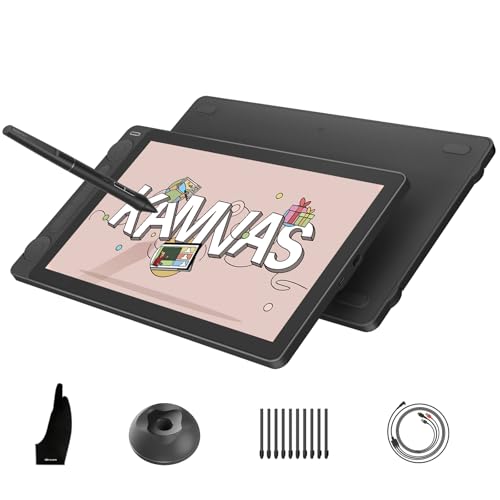
The HUION Kamvas 13 (Gen 3) is the strongest pen display in this guide for artists who want to draw directly on the screen with accurate color. Its 13.3-inch full-laminated display shows 1920 x 1080 pixels behind anti-glare Canvas Glass 2.0, a nano-etched surface that reduces glare while giving the pen a paper-like texture. Full lamination bonds the glass to the LCD, so the cursor sits almost directly under the nib with very little parallax.
Color accuracy is the headline feature. The panel covers 99 percent of sRGB and Rec.709 and 90 percent of Adobe RGB, and each unit is factory calibrated to a Delta E under 1.5, with a calibration report included. The PenTech 4.0 stylus reports 16,384 levels of pressure sensitivity with a 2-gram initial activation force, so the lightest touch starts a line. Two dial controllers and five silent press keys handle brush size, zoom, canvas rotation, and opacity.
At 11.7 mm thick and 865 grams, with a symmetrical design for left- and right-handed artists, it connects by 3-in-1 cable or USB-C and works with Windows, macOS, Linux, and compatible Android devices. Note that it is not standalone: it must be connected to a computer or a compatible Android device to work.
Key specs: 13.3-inch full-laminated display, 1920 x 1080; Canvas Glass 2.0; 16,384 pressure levels; PenTech 4.0 pen, 2-gram initial activation force; 99 percent sRGB, 90 percent Adobe RGB; factory calibration to Delta E under 1.5; 2 dials and 5 press keys; 865 g; model GS1333.
Pros:
Cons:
4. Wacom One HD Creative Pen Display
- Draw directly on the screen with a proven Wacom pen
- Simple setup with fold-out legs and an included pen and cables
- Compatible with third-party EMR pens for a customized feel
- No shortcut keys or dials on the tablet
The Wacom One HD Creative Pen Display is the straightforward Wacom pen display for artists who want to draw on a screen without learning a new pen system or a complex setup. Its 13.3-inch display shows 1920 x 1080 pixels with a matte anti-reflective surface and 72 percent NTSC color coverage, and the included Wacom One Pen is battery-free, reports 4,096 pressure levels, and supports 60 degrees of tilt. The pen also works with a range of third-party EMR pens, so artists who prefer a different grip can swap pens without changing tablets.
Setup is simple: the tablet connects with an X-shape cable that splits into HDMI and USB, plus a power adapter, and fold-out legs hold it at a 19-degree angle. It measures 357 x 225 x 14.6 mm, weighs about 1 kilogram, and works with Windows, macOS, Chromebook, and select Android smartphones.
There are no shortcut keys or dials on the tablet, so artists who rely on hardware shortcuts will need the keyboard nearby. For beginners moving to a first display, the Wacom One offers Wacom pen quality in a proven, uncomplicated package.
Key specs: 13.3-inch display, 1920 x 1080; 4,096 pressure levels; battery-free Wacom One Pen; 60-degree tilt; 72 percent NTSC; matte anti-reflective surface; fold-out legs, 19-degree angle; 294 x 166 mm active area; about 1 kg; model DTC133.
Pros:
Cons:
5. Wacom Intuos Pro Medium
- Pro Pen 3 is the most precise and most customizable pen in this guide
- Dials and ExpressKeys keep brush, zoom, and layer controls at hand
- 16:9 active area maps naturally to widescreen monitors
- Screenless design has the same learning curve as other pen tablets
The Wacom Intuos Pro Medium is the professional pick in this guide for artists who prefer a screenless tablet but want the best pen and the most hardware control Wacom offers in a medium size. It ships with the Pro Pen 3, a customizable stylus with 8,192 levels of pressure sensitivity, tilt support to 60 degrees, and lag-free tracking. The pen can be adjusted with slim, straight, or flared grips, and its weight balance and button layout can be changed to suit the artist’s hand, which matters during long sessions when small ergonomic differences accumulate into fatigue.
ExpressKeys and dials sit within reach of the non-drawing hand, so brush size, zoom, canvas rotation, and undo can be adjusted without looking away from the monitor. The active area measures 10.4 x 5.8 inches on a footprint of 11.4 x 8.1 inches, and the 16:9 format matches modern widescreen monitors, so the mapping from tablet to screen feels proportional. Bluetooth connects the tablet wirelessly to Mac or Windows.
Key specs: Pro Pen 3, 8,192 pressure levels; tilt to 60 degrees; customizable pen grip, balance, and button layout; ExpressKeys and dials; 10.4 x 5.8 in active area; 11.4 x 8.1 in footprint; 16:9 format; Bluetooth and USB; model PTK670K0A; Mac and Windows.
Pros:
Cons:
Buying Guide: How to Choose a Drawing Tablet for Artists
Screen or screenless. Pen displays such as the Kamvas 13 (Gen 3) and the Wacom One let the artist look at the hand while drawing, which feels natural for anyone coming from paper and shortens the learning curve. Screenless tablets ask the artist to draw on the tablet while watching the monitor, which takes a few days to a few weeks to feel natural. The reward is a larger active area in a smaller, lighter package, plus a monitor chosen separately for size and color accuracy. Artists who already own a good monitor often prefer screenless tablets, while artists who struggle with hand-eye separation usually prefer a display.
Pressure levels and pen feel. Pressure sensitivity controls how line weight, opacity, and brush size respond to how hard the pen is pressed. A pen with 4,096 levels, as on the Intuos Medium and the Wacom One, is enough for most illustration, inking, and photo editing. Pens with 8,192 levels, as on the Deco 01 V2 and the Intuos Pro Medium, offer finer gradation in the lightest part of the stroke, which helps with delicate shading and hairline work. The Kamvas 13 (Gen 3) goes further with 16,384 levels and a 2-gram initial activation force. Tilt support allows shading with the side of the brush, and all five tablets here use battery-free pens, so there is no charging to manage.
Active area and size. Active area is the region of the tablet that maps to the screen, and it shapes the drawing experience more than overall tablet size. A larger active area allows broad shoulder and arm movements, which suit loose sketching and large canvas painting, while a smaller one favors wrist-driven detail work and fits cramped desks. The Deco 01 V2 has the largest active area here at 10 x 6.25 inches, followed by the Intuos Pro Medium at 10.4 x 5.8 inches and the Intuos Medium at 8.5 x 5.3 inches. Both display picks are 13.3 inches, which is portable but smaller than a desktop monitor.
Color accuracy. For pen displays, the panel is part of the purchase: the Kamvas 13 (Gen 3) covers 99 percent of sRGB and 90 percent of Adobe RGB with factory calibration, which suits client work and print preparation, while the Wacom One covers 72 percent of NTSC, adequate for sketching but less suited to color-critical work. For screenless tablets, color accuracy depends on the monitor already in use, so the tablet choice does not limit color at all.
Shortcuts and software. ExpressKeys handle undo, brush size, and zoom, while dials control brush size and canvas rotation with a twist instead of a menu. The Intuos Pro Medium offers the most complete shortcut setup here with ExpressKeys and dials, the Kamvas 13 (Gen 3) pairs two dials with five press keys, the Deco 01 V2 provides eight shortcut keys, and the Intuos Medium provides four ExpressKeys. The Wacom One has no built-in shortcuts, so artists who buy it should keep the keyboard close. Every tablet here works with Photoshop, Clip Studio Paint, Krita, Corel Painter, and Blender on Windows and macOS, but confirm driver support for the exact operating system version before buying.
Frequently Asked Questions
What is the best drawing tablet for a beginner artist?
The Wacom Intuos Medium Bluetooth is the best starting point for most beginners. It pairs a reliable battery-free pen with 4,096 pressure levels, Bluetooth wireless use, and bundled creative software, and its medium size suits both sketching and detailed work. Beginners who prefer drawing directly on a screen should look at the Wacom One, the simplest pen display in this guide.
Do artists need a drawing tablet with a screen?
No, a screen is not required. Many professional illustrators, concept artists, and retouchers work entirely on screenless tablets such as the Wacom Intuos Pro Medium, using a separate monitor for the image. A screen helps artists who find hand-eye separation difficult and shortens the learning curve, but it adds weight and cable complexity. Direct-on-screen drawing feels more like paper, while a screenless tablet offers a larger surface and a free choice of monitor.
How many pressure levels does a drawing tablet need?
For most illustration, inking, and photo editing, 4,096 pressure levels is enough, and it is the level offered by the Intuos Medium and the Wacom One. Artists doing delicate shading, hairline inking, or calligraphy benefit from 8,192 levels, as on the Deco 01 V2 and the Intuos Pro Medium, which gives finer control in the lightest part of a stroke. The 16,384 levels on the Kamvas 13 (Gen 3) add even finer gradation and a very light initial activation force.
Can a drawing tablet be used with Photoshop and Clip Studio Paint?
Yes. All five tablets in this guide work with Photoshop, Clip Studio Paint, Krita, Corel Painter, and other major art programs on Windows and macOS. Pressure sensitivity, tilt, and shortcut keys are supported through the tablet driver, which should be downloaded from the manufacturer and kept up to date.
What size drawing tablet should an artist buy?
Medium is the right size for most artists. A medium tablet such as the Intuos Medium or Intuos Pro Medium offers enough room for broad strokes and detail work without dominating the desk. A large active area such as the Deco 01 V2 suits artists who draw with the whole arm or work on large canvases, while a small tablet suits travel and tight desks but can feel cramped for detailed illustration.
Conclusion
The best drawing tablet for artists depends on how the artist works, not on a single specification. For a first tablet, the Wacom Intuos Medium Bluetooth offers the most reliable path into digital art, with a battery-free pen, wireless use, and bundled software. For a larger drawing surface at a modest outlay, the XP-PEN Deco 01 V2 adds 8,192 pressure levels, tilt support, and eight shortcut keys. For direct-on-screen drawing with accurate color, the HUION Kamvas 13 (Gen 3) leads this guide with its calibrated panel, 16,384 pressure levels, and dual dials. The Wacom One keeps setup short and the pen feel familiar. For professional illustration and retouching on a screenless tablet, the Wacom Intuos Pro Medium pairs the customizable Pro Pen 3 with dials and ExpressKeys that keep the workflow moving.
Match the tablet to the work: screenless for a large surface and a free choice of monitor, a pen display for drawing directly on the image, and a professional pen for the finest control. Check the current price on Amazon for the pick that fits, confirm driver support for the operating system and software in use, and choose the tablet that will be comfortable at the end of a long drawing session, not just at the start of one.
FAQ
What is the best drawing tablet for a beginner artist?
Do artists need a drawing tablet with a screen?
How many pressure levels does a drawing tablet need?
Can a drawing tablet be used with Photoshop and Clip Studio Paint?
What size drawing tablet should an artist buy?
More from Amazon
Programs that pair well with the guide above. Offers and eligibility are set by Amazon and may change.
Free shipping on eligible items, Prime Video and more. Eligible new members can start with a free trial.
Start a Prime free trialA Prime membership for ages 18-24 with a trial period. Eligibility is set by Amazon.
See Prime for Young AdultsAudiobooks and podcasts to listen to on the go. Eligible new members can start with a free trial.
Try Audible freeAd-free music streaming. Eligible new subscribers can start with a free trial.
Try Music Unlimited freeAs an Amazon Associate we earn from qualifying purchases.